
Legacy documentation. This guide still works, but it relates to discontinued or superseded software. It is kept for anyone running an older setup and is no longer part of the current CloudWatcher documentation.
Deleting the AAG_News window
The CloudWatcher software shows a news/announcement window that some users find covers everything else on screen. It's controlled by a single registry key, and removing it is a two-minute job:
- Open the Windows Registry Editor (
regedit). - Navigate to
Computer\HKEY_CURRENT_USER\Software\VB and VBA Program Settings\AAG_CloudWatcher\Window. - Delete the AAG_News key.
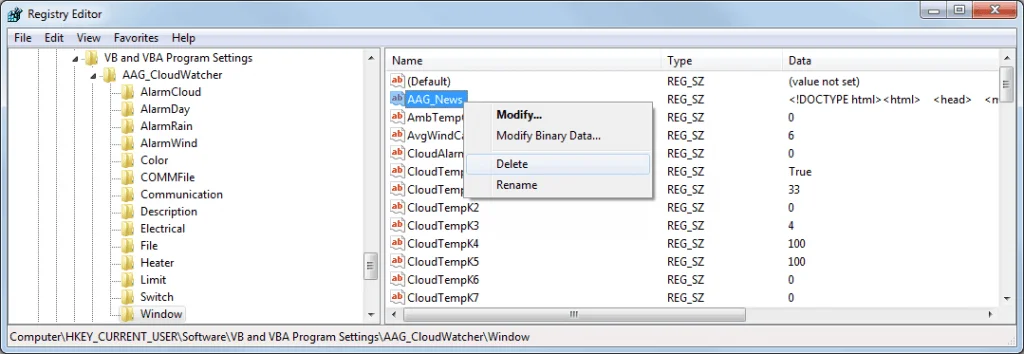
The window won't reappear after that.
Feeding extra data back into AAG WeatherCenter
If you also run Cumulus weather station software, you can have it generate a file that AAG WeatherCenter reads to fill in the readings the CloudWatcher doesn't provide (like ambient temperature/humidity from a separate station). In Cumulus:
- Set the auto-update option and choose an interval.
- Open the Files tab and point it at the template: local file
AAG_WeatherCenterCU.htm, output fileToWc.html. - Tick Process.
- In AAG WeatherCenter, go to Setup → Weather station → Data file and point it at that same
ToWc.html.
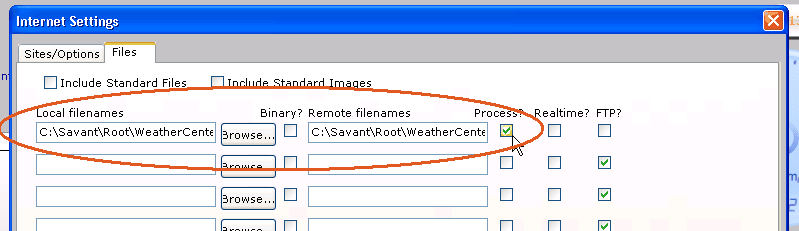
From then on, Cumulus writes the file every interval and AAG WeatherCenter reads it automatically. For the full walkthrough (template download included), see the AAG WeatherCenter + Cumulus integration guide.