
The problem
After certain Windows updates, the Seletek software can fail to detect the controller automatically over USB unless it is run with administrator privileges. If you'd rather not run it as administrator every time, you can bypass automatic detection by telling the software exactly which COM port to use.
Step 1—find the COM port in Device Manager
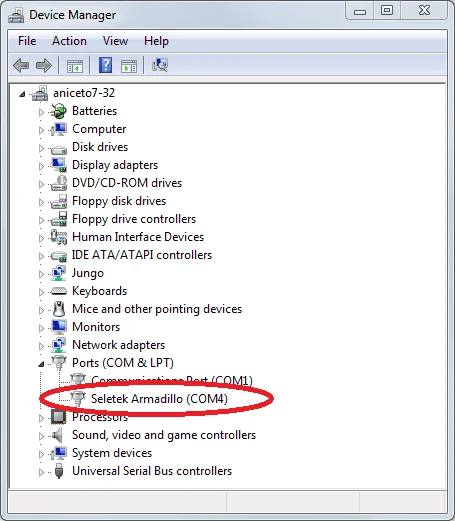
Open Windows Device Manager and expand Ports (COM & LPT). Look for the entry referencing your controller—"Seletek Armadillo," "Platypus," etc.—and note the COM number in parentheses.
Step 2—set it in the software
Open the Seletek software's Configuration options dialog and, under "Connect with," select Especific COM (Specific COM), then enter the port number you found in Device Manager.
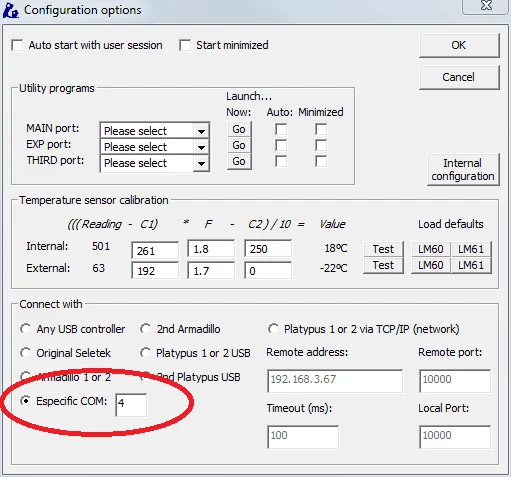
Note: if you move the controller to a different USB port, Windows may assign it a new COM number—check Device Manager again and update the value here to match.