
How to reburn your Dragonfly’s microSD card
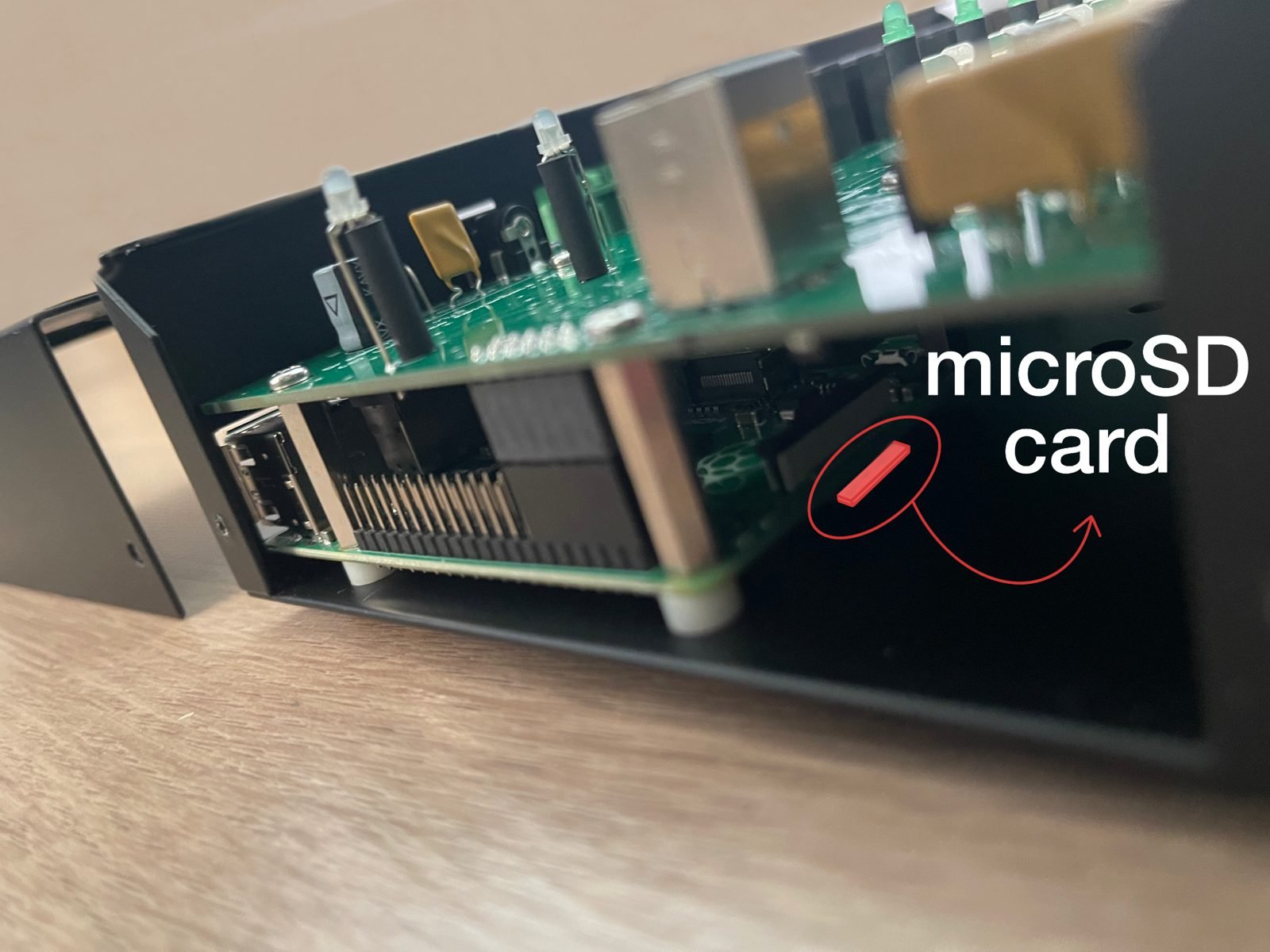
To reburn your Dragonfly’s SD card, you first need to extract it. With the Dragonfly turned off, open it (remove the four screws on the sides). Push the card into the card holder, then release, a spring will free it (never force as that will damage the holder). If the card does not move-and-click when you press it in (different card holder), then you can just gently pull. Afterward, just get it out with the help of a pair of tweezers.
Once out, use software like the free Rufus (the portable version, which doesn’t modify the windows registry) to burn the image you can find here. There is no need to format the card: just select the image file and the SD card drive, and record the image, overwriting whatever is on the card. Lastly, simply reinsert the card, and turn on your Dragonfly.
Consequences of reburning your Dragonfly’s microSD card
When reburning your Dragonfly’s SD card, you will lose your network configuration, including the device name (it’ll go back to the default: “dragonfly”) and a few other settings, those that are configured from the main “DragonflyConfigurator” window:
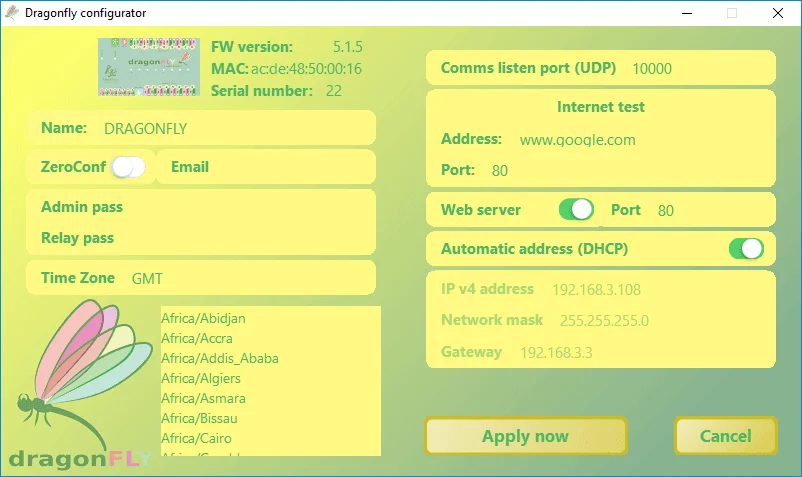
Everything else is either retained automatically or can be restored:
- Macros—they aren’t lost, they live on the main board.
- Relay restrictions—likewise.
- Relay and sensor names and configuration—these belong to the windows software, and can be saved and restored using the Windows application.
Questions? Issues?
Reach out at support@lunaticoastro.com