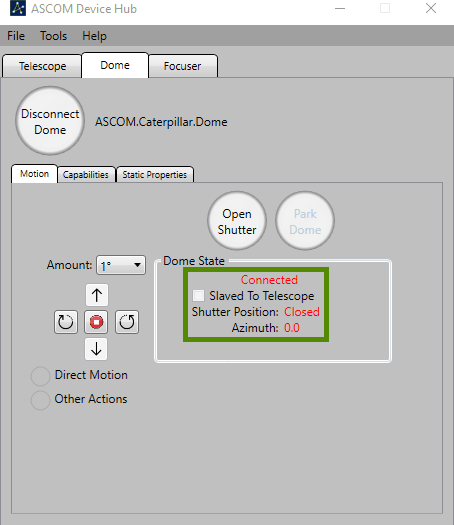
ASCOM Device Hub lets multiple astronomy applications share a single dome driver connection, and handles telescope-dome slaving so the dome follows the telescope automatically.
Some programs—such as Voyager, Sequence Generator Pro, or N.I.N.A.—include their own dome to telescope slaving. It is up to you to choose the software to synchronise both elements. The ASCOM Device Hub is used here for reference.
Connecting the dome driver
- Open ASCOM Device Hub.
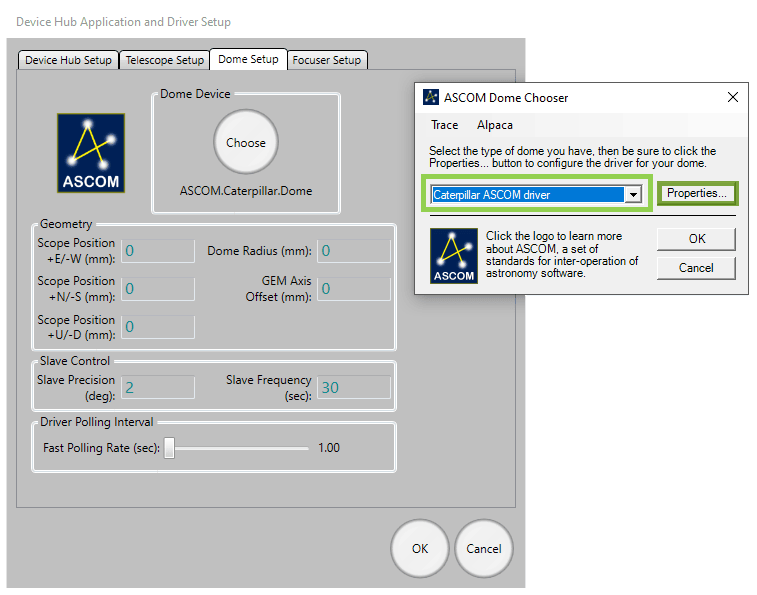
- Go to Tools → Setup → Dome Setup.
- Click Choose and select the Caterpillar ASCOM driver.
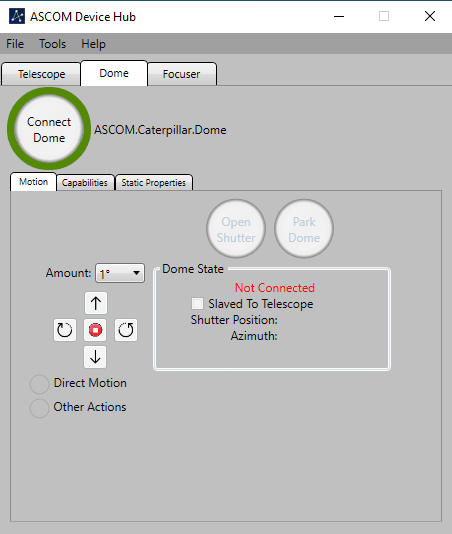
- Click Connect.
Telescope slaving
Configure the Telescope tab to connect to your mount's ASCOM driver, then enable slaving. Recommended parameters:
| Slave precision | 2° |
| Slave frequency | Every 5 seconds |
| Driver polling | Every 2 seconds |
Dome geometry
For accurate slaving, you need to tell Device Hub the physical geometry of your dome and mount. Open Dome Setup → Geometry and enter:
| Dome Radius | The inside radius of the dome |
| GEM Axis Offset | Distance from the GEM pier to the dome's geometric centre |
| E/W Offset | East–West offset of the mount's intersection point from dome centre |
| N/S Offset | North–South offset |
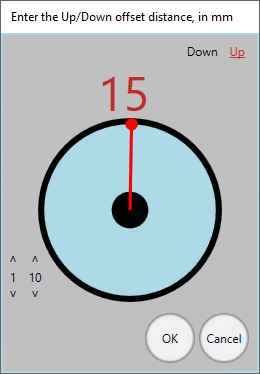
| Up/Down Offset | Vertical offset |
The N/S, E/W, and Up/Down parameters describe by how much the mount's optical axis intersection point is offset from the centre of rotation of the dome. The best way to measure these is often by taking differences—position the telescope at different azimuths, note the dome positions required, and back-calculate the offsets.