
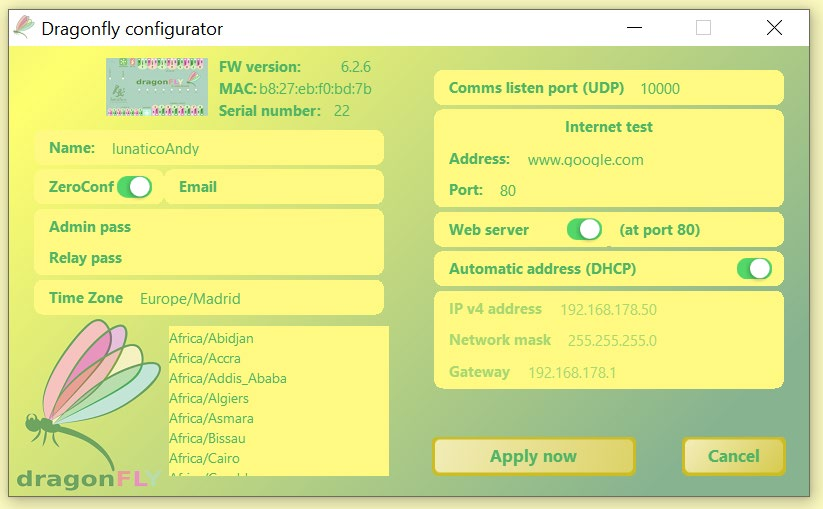
If you have your own observatory, on a private network, then it probably doesn't matter whether you use the web interface or not. Indeed, many users may not even know that there is an option to control the Dragonfly through a web browser.
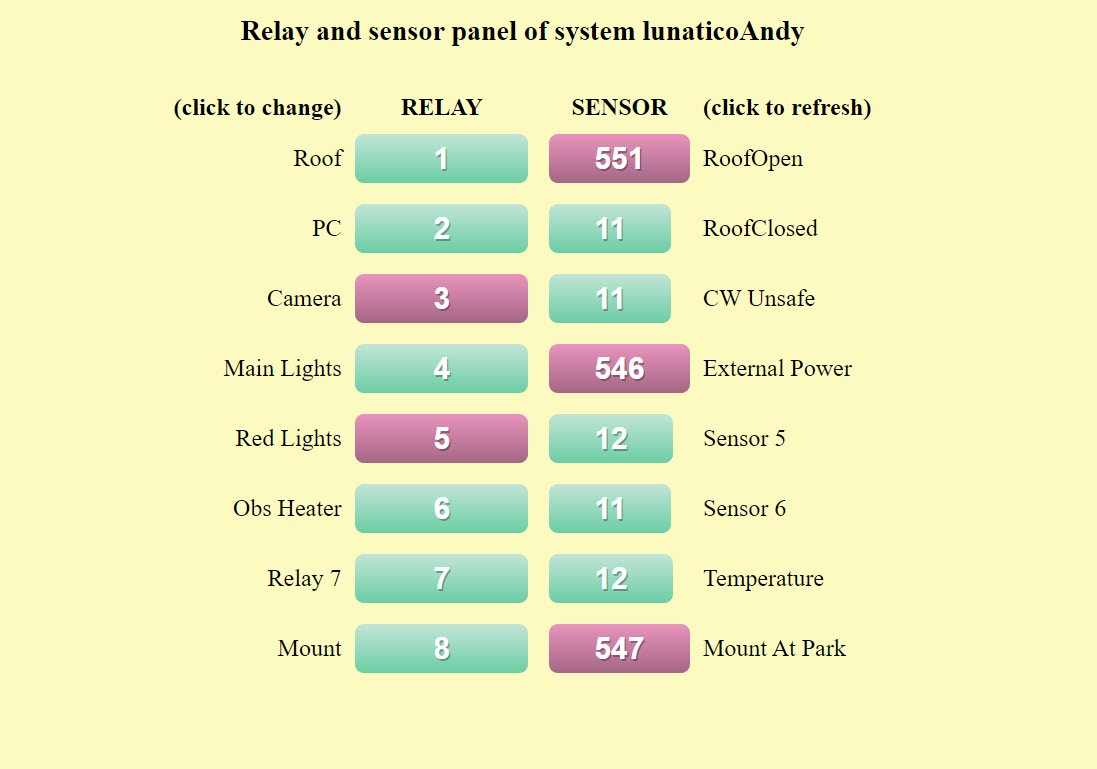
It's a different story if you are at a shared facility. There, we would generally advise you to turn this feature off, to avoid the possibility of someone gaining access to your Dragonfly's relays, either accidentally or otherwise. Left unprotected, anyone on the network can reach a panel like this one:
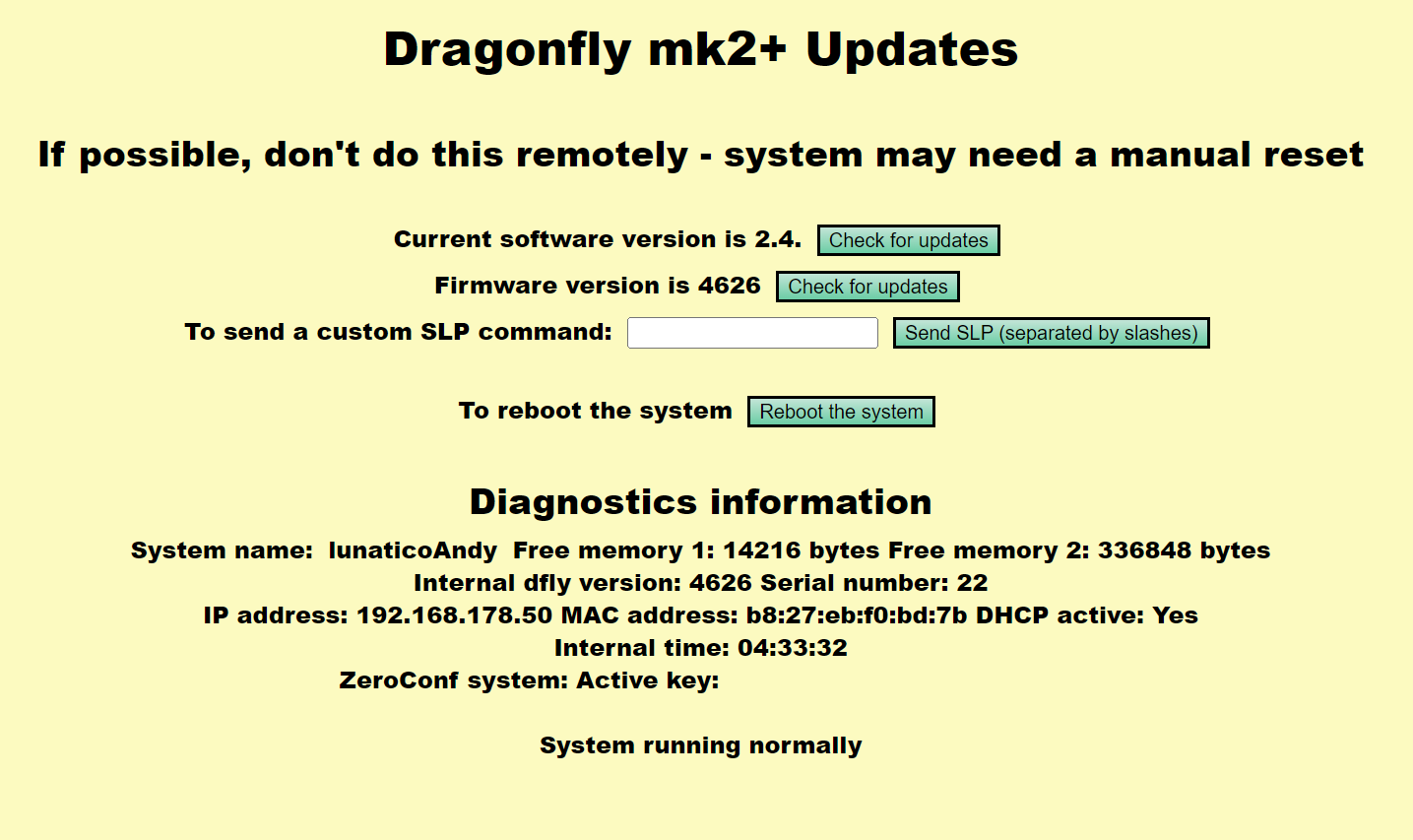
There are times, however, when all users will need access to the web server, the main one being to check for and apply updates to the Dragonfly:
For this reason, you may wish to add a user password to the webpage of your Dragonfly.
Please note: even with password protection, you should never open the Dragonfly's web server port to the internet!
Getting started
We need access to the Dragonfly via SSH (secure terminal).
Using PuTTY
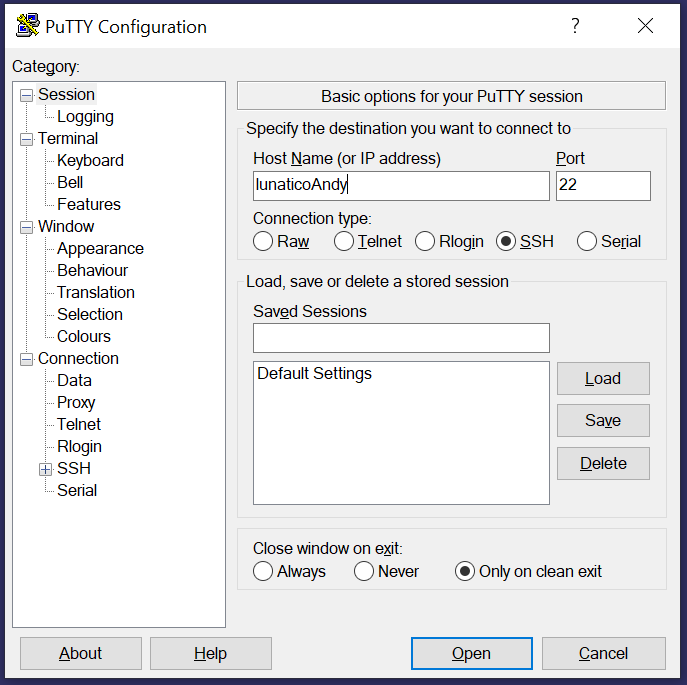
A popular and free program is "PuTTY". It can be downloaded from www.putty.org. Just type the name or IP address of the Dragonfly in the Host Name field and leave the rest as it is, then press Enter.
You'll be asked if the signature is valid—select "yes"—and when prompted, enter:
- User:
dragonpi - Password:
dragonpi
Using Windows PowerShell
Another option for Windows 10 users is to use the built-in PowerShell, which includes an SSH client. To open PowerShell, right-click on the Windows icon on the taskbar and select the appropriate version from the menu.
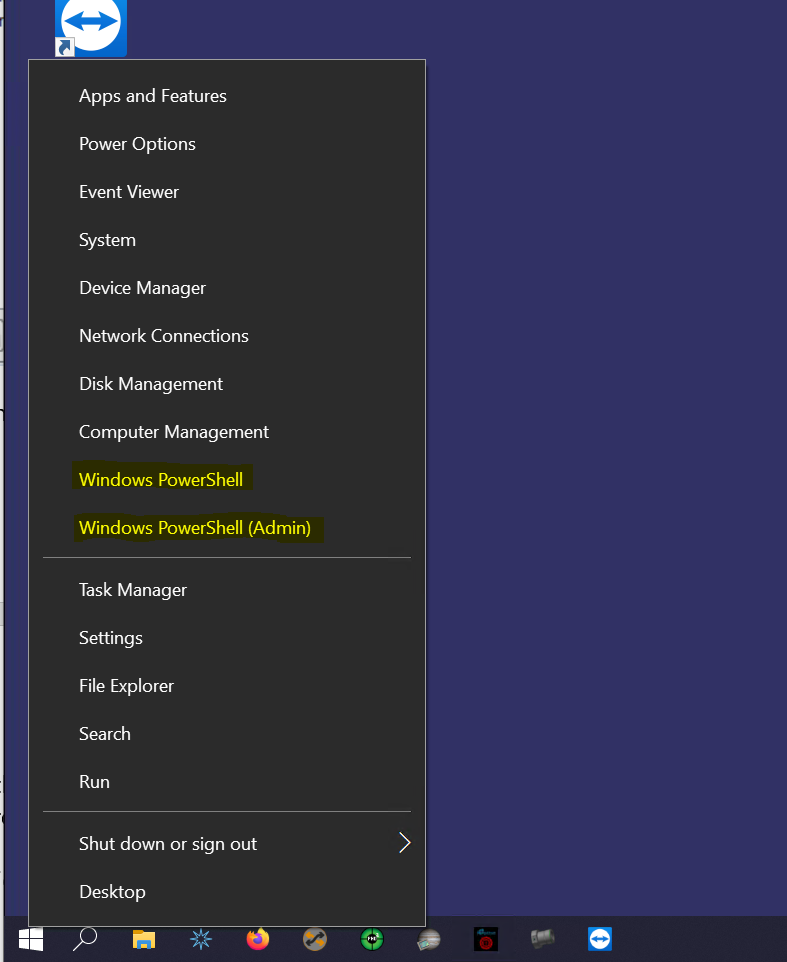
From PowerShell, connect the same way you would to any SSH host:
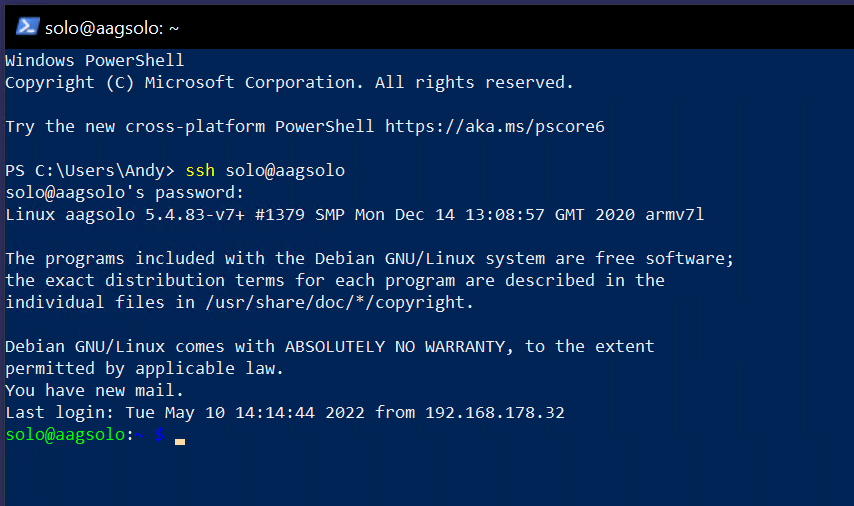
Making changes to the Dragonfly
To begin, we need to make the file system writeable:

(If you are prompted for the password, enter dragonpi.)
Then we'll stop the web server:

Next, we need to edit the web server configuration file:

We need to add the following lines to the configuration file (substitute "andy" for the username of your choice):
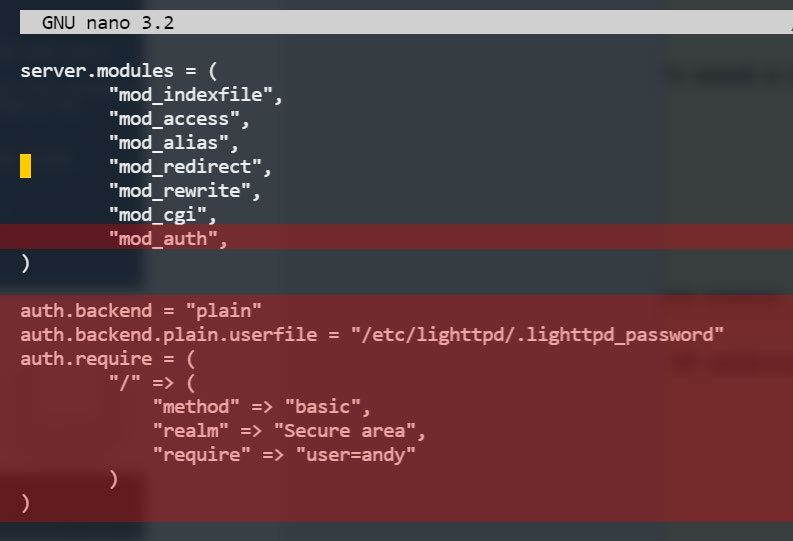
To save the file, press CTRL+O, followed by CTRL+X to exit nano.
Next, we need to create the file .lighttpd_password:

Simply enter the username chosen in the lighttpd.conf file, followed by a colon and the password of your choice:

…before saving and exiting as above (CTRL+O, CTRL+X).
Now we can restart the web server:

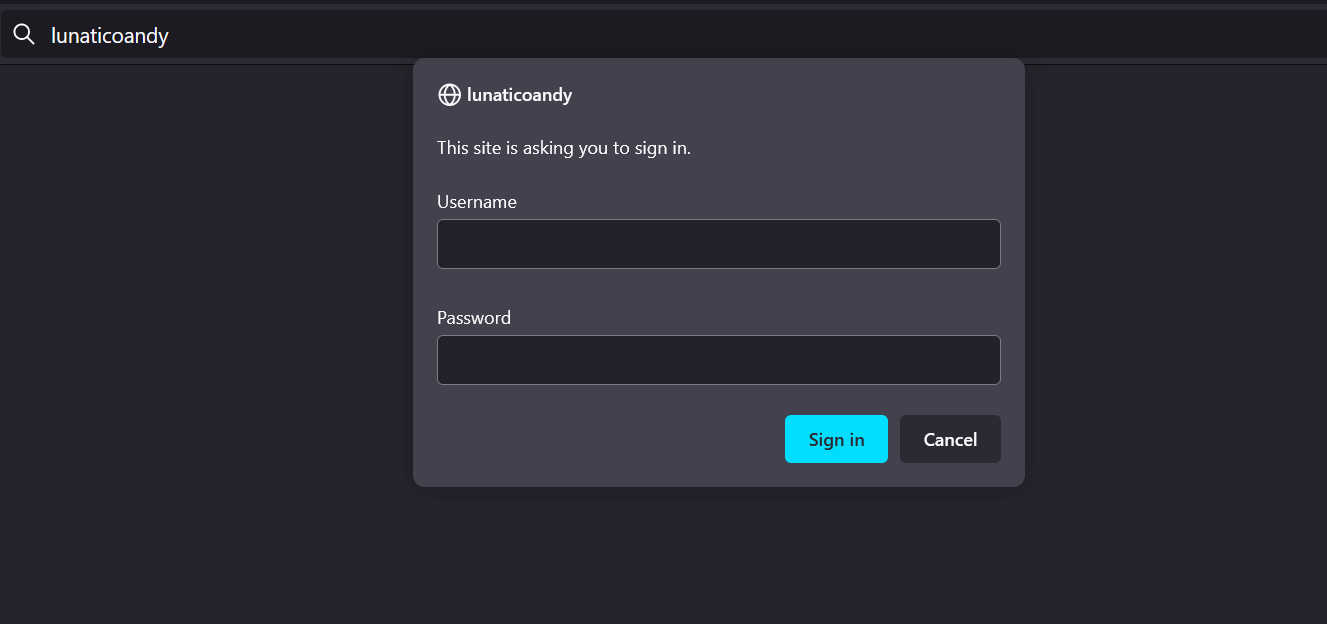
If all has gone well, you should now be presented with the following screen when attempting to visit the Dragonfly's web page:
That's it! For further information, visit the forum.