
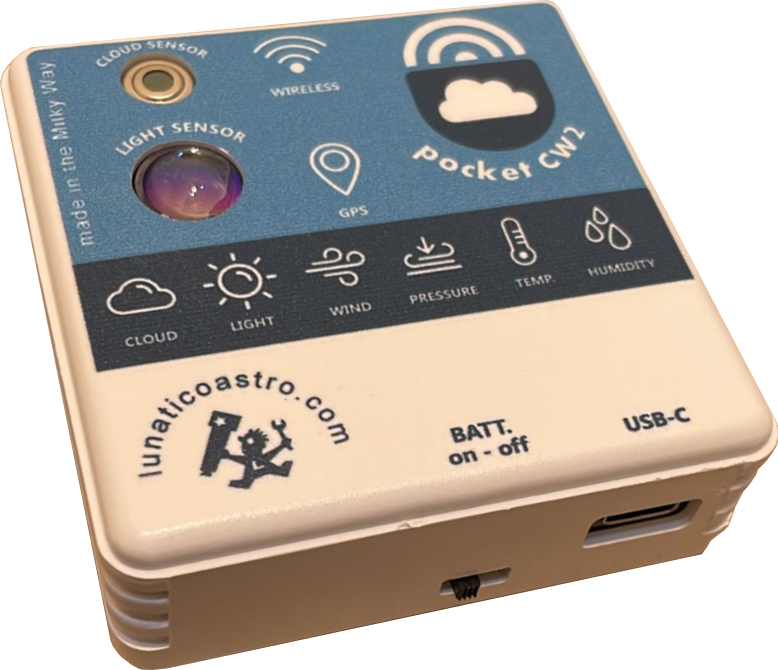
Thanks for purchasing this device!
1.Setting up for the first time
Wi-Fi connection (optional)
This feature is currently only available when using a smartphone, PC users hang on for a bit!
If you are planning to use your pocketCW2 via Wi-Fi:
- Power on your pocketCW2, it will set up an access point called PocketCW_SN (where SN is your pocketCW2’s serial number).
- Using your PC or smartphone, connect to the access point (if it takes more than 2 minutes for you to connect, the access point will be automatically shut down—please power off/on the pocketCW2 again).
- Launch a web explorer and connect to pocketcw.com (if this doesn’t work, you can connect to http://192.168.4.1 instead).
- Select config, fill in your access point details, and check connect to access point.
- Press apply—the pocketCW2 will reboot and try to connect to your Wi-Fi network.
You can access this configuration window in the future using the same steps, should you need to find out the IP address assigned to the pocketCW2 by your network.
2.Using the smartphone app
If you are using your smartphone, install the pocketCW app (iPhone-iPad / Android), check your Wi-Fi is on (and connected to the same network as the pocketCW2), and launch it.
App appearance
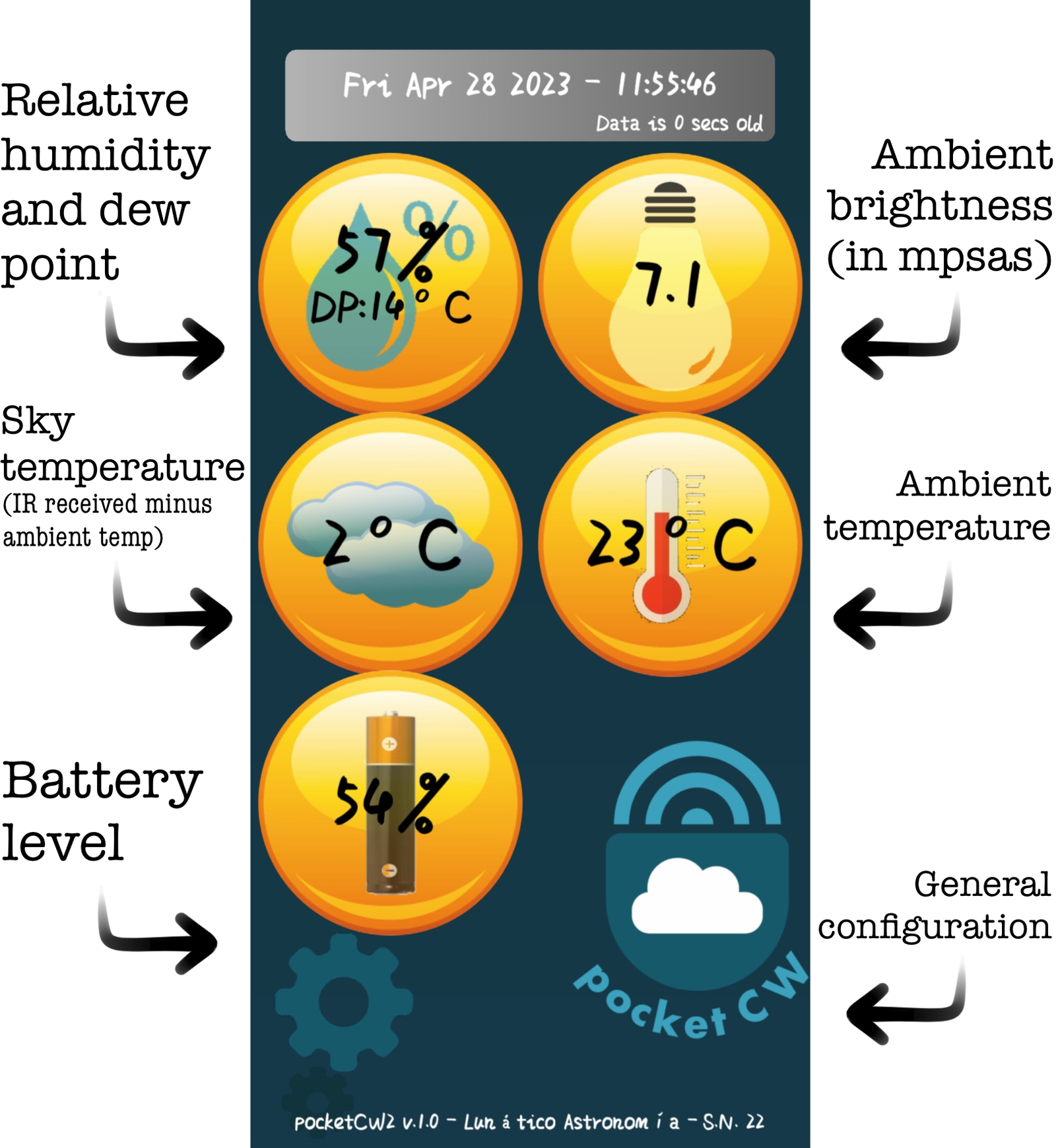
Once you open the application, you’ll see several information bubbles, one for each different reading. If the pocketCW2 is powered on, in a few seconds the data will show on-screen.
In order to access the different settings, press the gears icon. The information bubbles will begin to “dance”, and you’ll be able to press any of them to configure the alarms (more information on them below). If instead, you press the pocketCW2’s logo, you can access the general settings, which include sound and vibration, preferred units, and a couple of other alarms.
App usage
Most things are self-explanatory, with just a few exceptions:
- The phone should be left unlocked (just enable the screen saver, that way the screen will be black but the device active), in order for alarms to work properly.
- The dew point alarm is set in relation to the delta between it and the ambient temperature. We are interested in avoiding condensation, so the alarm specifies how many degrees higher than the dew point is considered safe.
- For best cloud protection, we recommend setting the alarm each night, at 15 °C / 27 °F above that of the clear sky. If the sky is not 100% clear when leaving the equipment working, that number should be reduced.
Let's say we're going to sleep for a while, leaving the telescope taking images. The night is nicely clear, with a sky temperature of -10 °C / 14 °F. We can set the clouds alarm at 5 °C / 41 °F. This suggestion is, however, not carved in stone and may be different for your location—just check the sky condition and temperature and in no time you'll find it easy to predict.
In order to provide effective protection, the app must be active at all times. The app will disable the “auto-sleep” while running, so you just have to remember to have the pocketCW application open. It is recommended to lower the screen brightness and, for prolonged periods, connect the smartphone to a charger.
Note as well that the alarms will not go off unless the app has established an initial connection to the pocketCW. Make sure data is being received before going to sleep.
Types of alarms
The app can have alarms go off for unsafe conditions, but also for safe conditions. You have the option to reverse the logic from the alarm configuration menu, and any time an alarm goes off. It's also possible to completely disable alarms—then the menu is the only way to turn them back on, for safe or unsafe.
Alarm logic
To better understand how this works, let's see how each alarm will go off:
Unsafe: every time data is received from the pocketCW, if the conditions measured are unsafe and the delay and snooze period have elapsed, then the alarm will go off.
Safe: if the last data received from the device was safe, and the delay and snooze period have elapsed, the alarm will go off.
Data age: at any time, if the pocketCW has failed to communicate for the specified period of time, the alarm will go off.
If all alarms have been cancelled, or if the app is in one of the configuration screens, the alarms will not go off.
Screen saver
To protect modern OLED screens (and also to save battery and reduce light), there is the option to enable a screen saver. Touching the screen anywhere will make the screen visible again.
3.Using a computer
If you don’t already have the CW Windows software, download it (Software & other downloads – LUNATICOASTRO.COM).
Using the pocketCW2 with a computer, through the CW’s software, opens a wide range of possibilities, from using ASCOM safety monitor and observing conditions drivers to inter-operation with almost every session automation program in the market!
Operating the software
The operation of the software is basically the same as with the CloudWatcher (be sure to check its manual if you don’t know how that is). However, keep in mind the following notes:
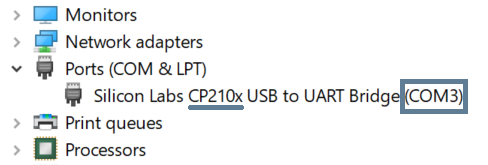
The serial port assigned will be displayed by Windows when connected using the USB-C cable. If you missed it, check in the device manager for a new CP210x device, under the Ports (COM & LPT) section—COM3 in the image below:
The connection may take a few seconds to establish and result in good data.
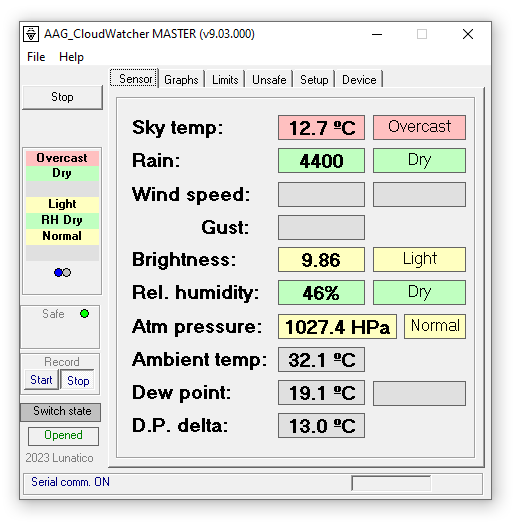
The rain sensor values are meaningless, as the pocket does not have such a sensor. The same applies to the heating status and switch state.
Other than that, the behaviour will be very much the same as a standard CloudWatcher.
If Windows does not automatically install the drivers, please download and install them from our webpage, Software & other downloads – LUNATICOASTRO.COM.
About battery and power
If your pocketCW includes a battery (which will last for almost 7 hours when full and new, at normal temperatures and Wi-Fi active), it will be slowly charged while connected to the PC.
Please keep in mind that cold temperatures shorten battery life.
About ambient temperature readings
Please note that when using the smartphone app, the pocketCW2 itself corrects the temperature readings to account for the device’s heating. However, this is not the case for the Windows software, as the readings in that case come from the humidity sensor, which in the CloudWatcher is external and hence don’t require the correction. To solve this issue, setting an offset of around 5 °C should be enough.
About sky quality readings
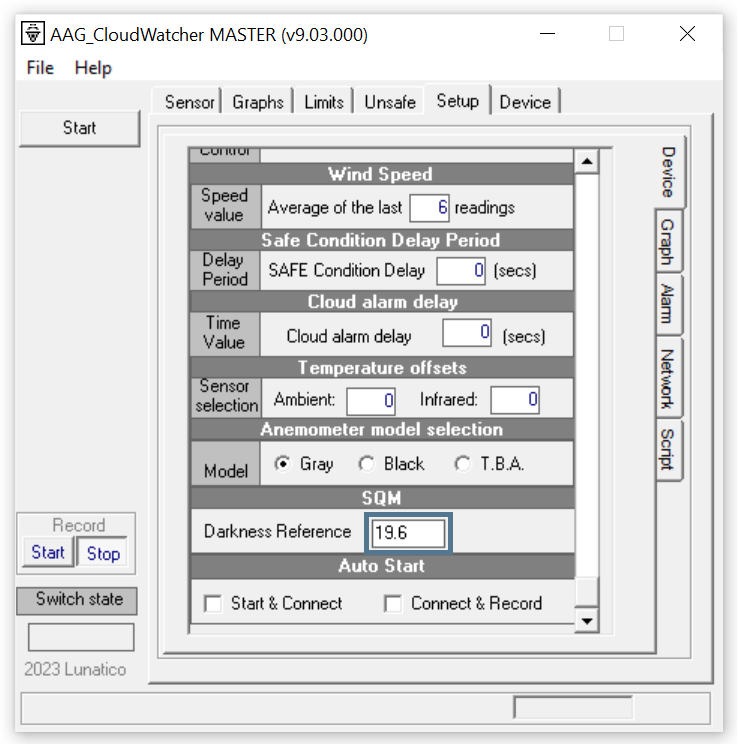
Additionally, kindly note that the standard SQM darkness reference value for the pocket is 20.0, instead of 19.6 like the CloudWatcher. You should change this value in the settings, in the Setup tab, Device side tab.
4.Some last notes
Technicalities
Please note that for the first badge of pocketCW2s the battery on – off switch is inverted (on meaning off and vice versa). If you are wondering why that is the case, just know that so are we :).
Safety warnings
- Do not leave the device in the rain or exposed to other heavy weather conditions—if you are looking for a weather resistant safety monitor, you should take a look at its older brother, the CloudWatcher.
- Only use batteries supplied or recommended by Lunático Astronomía (PocketCW2 rechargeable battery).
- Dispose of old batteries properly.
Support
If you require additional information to operate your PocketCW2, please refer to our forum (lunaticoastro.com – Forum). If you still require assistance, please reach out to us at support@lunaticoastro.com. We hope you enjoy our product!