
Thanks for purchasing this device!
If you haven't done so, install the pocketCW app for your phone (iPhone/iPad/iPod or Android)… launch the app.
Alternatively, if you have the PC version of the device, you may want to just connect it to your PC—please skip forward if not using the smartphone apps.
You'll see the screen with all the information. If the CloudWatcher is powered on, in a few seconds the information will be filled with all relevant data.
You can set alarms on any of the data, and more: just touch the "settings" (gears) icon, all configurable items will begin to "dance", touch one, and you'll see what can be configured. Touching the pocketCW logo launches the general configuration, where the sound can be chosen, vibration, etc.
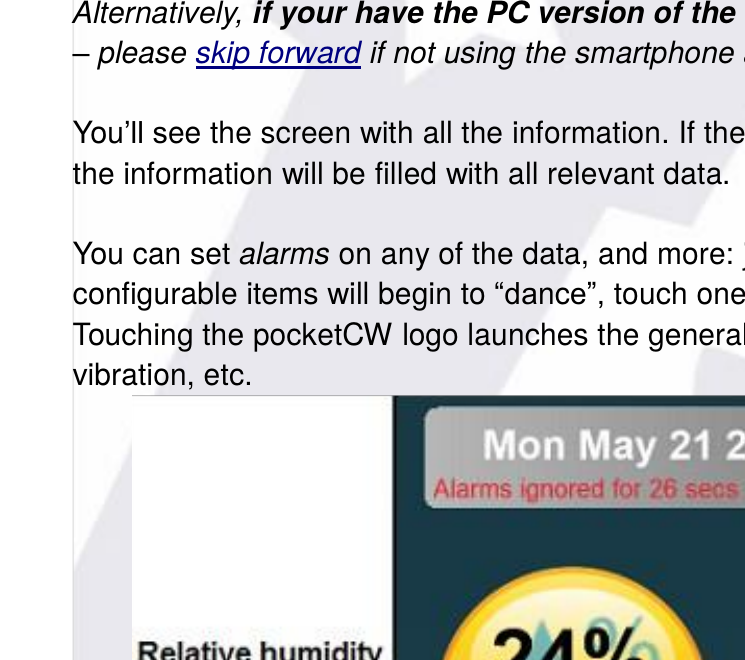
Most things are self-explanatory, with just a few exceptions:
- The dew point alarm is set in relation to the delta with the ambient temperature. We are interested in condensation, avoiding it actually, so the alarm specifies how many degrees higher than dew point is considered safe.
- For best cloud protection, we recommend setting the alarm each night at 15ºC / 27ºF above that of the clear sky. If the sky is not 100% clear when leaving the equipment working, that number should be reduced.
Let's say we're going to sleep for a while, leaving the telescope taking images. The night is nicely clear, with a sky temperature of -10ºC / 14ºF. We can set the clouds alarm at 5ºC / 41ºF. This suggestion is, however, not carved in stone and may be different for your place—just check the sky condition and temperature and in no time you'll find it easy to predict.
Important: in order to provide effective protection, the app must be active at all times. The app will disable the "auto sleep" while running, so you just have to remember to have the pocketCW screen visible. Recommended to lower the screen brightness and, for prolonged periods, connect the smartphone to a charger.
Also noteworthy: the app will not fire any alarm unless it has established an initial connection to the pocketCW. Make sure data is received before going to sleep.
Types of alarm
The app can fire its alarm on unsafe conditions—but also on safe. You have the option to reverse the logic from the alarm configuration menu, any time an alarm fires. It's also possible to completely disable alarms—then the menu is the only way to turn them back on, on safe or unsafe.
Alarm logic
To better understand how it works, let's see how each alarm will be fired:
- Unsafe: every time data is received from the pocketCW, if the conditions are measured as unsafe, and the delay and snooze period have elapsed, then the alarm will fire.
- Safe: if the last data received from the device was safe, and the delay and snooze period have elapsed, the alert will fire.
- Data age: at any moment, if the pocketCW has failed to communicate for the specified period of time, the alert will fire.
If all alarms have been canceled, or if the app is in one of the configuration screens, the alarms will not fire.
Screen saver
To protect modern OLED screens—and also to save battery and reduce light—there is the option to enable a screen saver. Touching the screen anywhere will make the screen visible again.
About battery and power
The pocketCW can run from its internal battery (will last for almost 2 days when full and new, at normal temperatures) or from an external 12V dc power supply (center positive). If the external power supply is used, it will also charge the battery.
0.04A (40mA) is more than enough for both charging and operating the device.
Remember cold temperatures shorten battery life.
PC connection
Serial communications (via USB) have been added to the pocketCW in such a way it can connect and use the "standard" CloudWatcher software, opening a wide range of possibilities, from ASCOM safety monitor and observing conditions drivers, to inter-operation with almost every session automation program in the market.
You will probably want to download and install the "Complete software package" from our downloads page.
The operation of the software is 99% the same as with the traditional CloudWatcher, but please keep in mind the following notes:
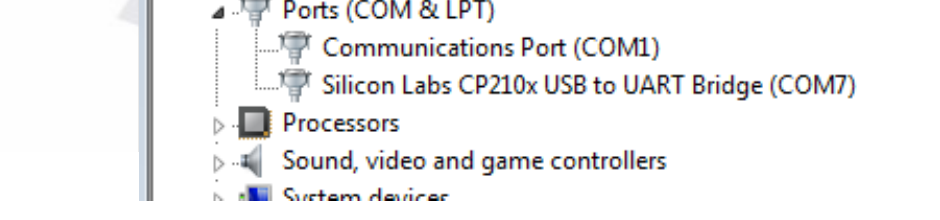
- The serial port assigned will be displayed by Windows when connected using the microUSB cable. If you missed it, check in the device manager for a new CP210x device, under the Ports (COM & LPT) section—COM7 in the image below:
- The connection may take a few seconds to establish and result in good data. Sometimes even clicking twice on the "Start" button may be required. Once established, it will be maintained with no problem.
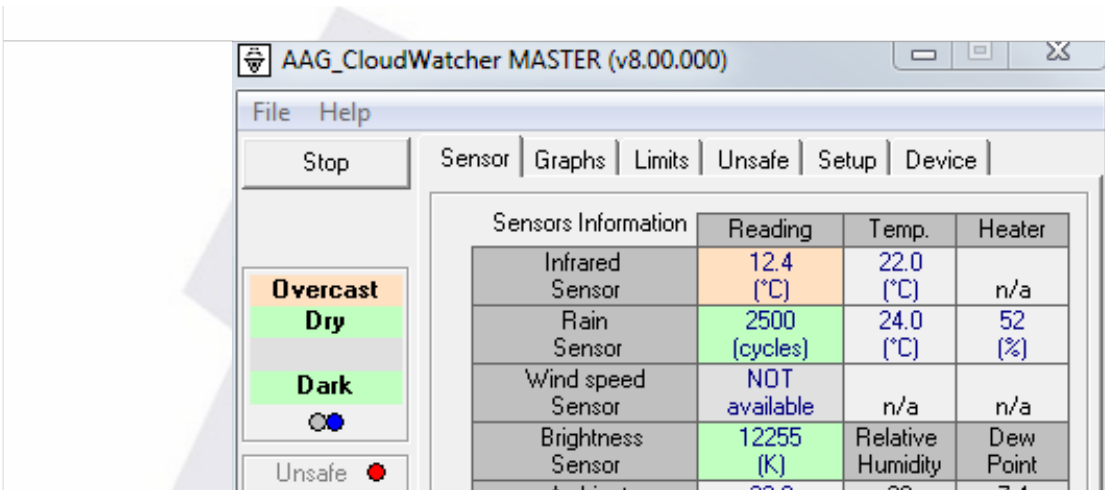
- The Brightness sensor value shown will not match the Luxes value that can be seen in the smartphone app, in order to be compatible with the limits/alarms system in the program1 (high values meaning dark, low ones meaning light).
- The Rain sensor values are meaningless, as the pocket does not have such a sensor; the same applies to the "Heating status" and "Switch state".
Other than that, the behaviour will be very much the same as a standard CloudWatcher.
If Windows does not automatically install the drivers, please download and install them from Silicon Lab's driver page; the device is a CP2104.
If your pocketCW includes a battery, it will be slowly charged while connected to the PC.
Some technical notes
- Range of operation: that depends on the smartphone model, and of course obstacles. Testing with an iPhone received data at more than 20m (no obstacles). With a low-cost Chinese Android phone, 15m was the farthest achieved.
1 The value displayed will actually be (50000 − (Luxes × 1000)). So for 50 Luxes or more the value will be 0; for values less than 0.001 Luxes the value will be 50000.
Safety warnings
- Use a proper power supply; reverse polarity or higher voltage may, and most likely will, damage your pocketCW.
- Do not leave the device under the rain or other heavy weather conditions—for a weather-resistant option, check its bigger brother, the AAG CloudWatcher.
- Use only batteries supplied or recommended by Lunático Astronomía.
- Dispose of old batteries properly.