
(contents revised Apr 2019)
The key: identify each controller separately
With current software versions you can mix any two controllers, whatever the model, but each software instance has to be told how to reach its own controller specifically.
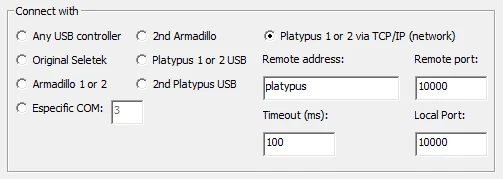
In practice, this means not selecting “Any USB controller” (if both are connected via USB), since that setting doesn't distinguish between them. The least confusing options are either a specific name/IP address for network-enabled controllers, or “Specific COM port” for a USB connection.
Setting it up
Once you have a couple of suitable controllers, it's quite straightforward:
- Open your currently working software (assuming you already have one controller up and running) and go to Configuration. If the connection is already TCP/IP, no need to change it; if it's "Any USB controller" (the default), change it to match your first controller specifically.
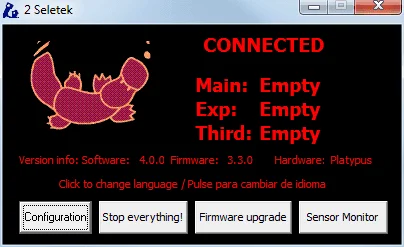
- Install a second copy of the software into a different folder—for example,
\Program Files (x86)\Seletek2—and give it its own Start Menu program group, such as "Seletek2". - That's it!
A word of warning about ASCOM
If you plan to use ASCOM, you can't have two ASCOM devices with the same name. If you're running 2 focusers, you can have one on the MAIN port and another on the EXP port of either controller, but never two devices both named "Focuser Main."
If you need three rotators, at least one of the controllers must be a Platypus, since you'll need one on MAIN, one on EXP, and the last on THIRD.
As always, if you have any doubt, just contact us.