What the watchdog does

A PC freeze is one of the most disruptive things that can happen at a remote observatory. If the control computer locks up, automation stops, mounts keep moving, and domes or roll-off roofs may not close. With no one on site, the setup is stuck until someone can physically access it.

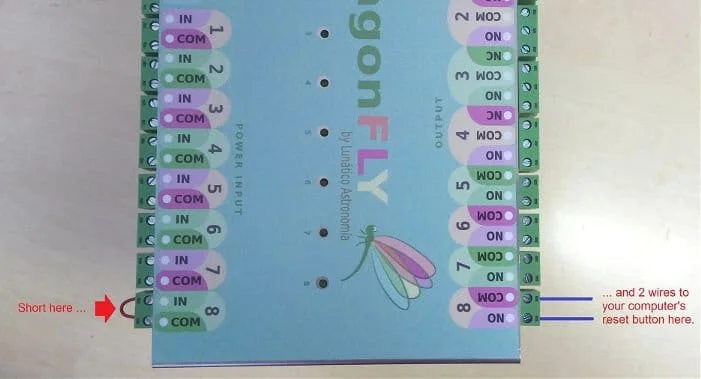
The DragonFly watchdog solves this by having one of its relay outputs wired to the PC's power button. The PC software sends a regular heartbeat signal to the DragonFly. If the heartbeat stops—because the software crashed or the OS hung—the DragonFly waits for a configurable timeout and then pulses the relay, simulating a power-button press to force-restart the computer.

How the heartbeat works

The Lunatico DragonFly software sends a UDP packet to the device on a fixed interval while it is running. The DragonFly tracks this heartbeat internally. If the interval exceeds the configured watchdog timeout without a new pulse, the DragonFly considers the PC unresponsive and triggers the relay.

The timeout is configurable: typically set to a value long enough to survive a brief software pause (e.g. a long image download) but short enough to respond to a genuine freeze within a useful timeframe. A value of 60–120 seconds is common.

Hardware wiring

The watchdog relay is wired in parallel with the PC's internal power button connector. This is a simple two-wire connection to the motherboard header; no cutting of any power wire is required. The relay contact simply short-circuits the power button pins for the duration of a brief pulse, exactly as a physical button press would.

Relay wiring options

  • Power button pulse (recommended): Relay wired to motherboard PWR_SW header. A 0.5–1 second pulse simulates pressing the power button; on a frozen system this forces a hard reboot.
  • Power supply interrupt: Relay in series with the PC power supply mains lead. Cuts power completely then restores it. More aggressive: use only if a power button press is not sufficient.
  • Smart power strip: Relay controls a switched power strip outlet. Allows cutting power to the entire PC+monitor combination if needed.

Important: wiring the relay to the motherboard power button header is always preferred. Abruptly cutting mains power to a running computer risks filesystem corruption and can damage some hardware. Reserve the mains-cut approach for systems where the power button option is not available.

Software configuration

The watchdog is configured in the DragonFly software. Open the settings panel and locate the Watchdog section. You will need to:

  1. Enable the watchdog function.
  2. Select which relay output is connected to the PC power button.
  3. Set the heartbeat timeout—the time (in seconds) the DragonFly waits without a heartbeat before triggering. Default: 120 seconds.
  4. Set the relay pulse duration—how long the relay closes to simulate the button press. Default: 2 seconds.

initcmds.ini and endcmds.ini

The watchdog is activated and deactivated via two optional command files placed in the DragonFly installation folder:

  • initcmds.ini—executed when the DragonFly software starts. Used to activate the watchdog and assign the relay that controls the PC reset button. The default setup uses relay 7 (the last of 8), a 120-second detection period, and a 2-second pulse duration.
  • endcmds.ini—executed when the software closes normally. Used to disable the watchdog so that a planned shutdown does not trigger a reset.
-- initcmds.ini (enable watchdog: relay 7, 120s timeout, 2s pulse)
!trig delete 0#
!trig wdogcr 120000#
!action add_relio_rlpulse_1_7_2000#
!action tadd 0 0#

-- endcmds.ini (disable watchdog on graceful shutdown)
!action tdel 0#
!trig delete 0#
!action delete 0#
DragonFly software watchdog settings tab
Watchdog settings in the DragonFly software

Each line in these files is a standard DragonFly protocol command. The software executes them in sequence on startup and shutdown respectively.

To test the watchdog, force-close the DragonFly software via Windows Task Manager, or physically disconnect the network cable. Since a graceful shutdown disables the watchdog automatically, only a hard close or a communication loss will trigger the relay after the timeout expires.

Tip: combine the watchdog with a CloudWatcher safety check. If the PC reboots during an observation session, you can configure the startup sequence to verify weather conditions before resuming automation, preventing an unsafe session restart after a recovery.

What happens during a watchdog restart

When the DragonFly triggers the watchdog relay:

  1. The relay closes for the configured pulse duration, pressing the virtual power button.
  2. If the OS is still responsive, a hard-shutdown prompt may appear; on a genuinely frozen system this is bypassed by the OS and the machine restarts.
  3. The PC boots, the DragonFly software starts automatically (if configured to run at Windows startup), and the heartbeat resumes.
  4. The DragonFly returns to normal operation.

The DragonFly itself remains powered and continues monitoring sensors, controlling relays for other functions (dew heaters, power outlets), and maintaining any CloudWatcher connection throughout the PC restart cycle.

Note: the watchdog only restarts the PC. It does not automatically resume any automation sequence that was running before the freeze. Your automation software should be configured to restart automatically with Windows and to re-read the current system state (mount position, roof status) when it starts.