
When using tools for a while, sometimes you realise you have missed some daily tasks. The Dragonfly is designed with automation in mind; it makes it easy to activate/deactivate devices when a certain event occurs. The CloudWatcher is designed for safety; we don't want your observatory to be ruined by rain or your imaging session messed up because of the clouds.
The combination of both was clear: the Dragonfly controls the roof, the CloudWatcher monitors weather conditions—let's design a way for the CloudWatcher to tell the Dragonfly to close the roof when the conditions are unsafe. And that was it.
It was not until you, the users, and we ourselves put them to use, that we realised there are so many more usual scenarios we could have considered.
One of the most common ones are humidifiers. The theory is simple: if the dew point is too close to ambient temperature, humidifiers must be put to work. Wouldn't it be nice if we could automate it using the Dragonfly?
All we would need would be two macros:
- One to turn the humidifiers ON when the dew point is close to ambient temperature.
- One to turn them OFF when there is enough humidity (the dew point is far enough from ambient temperature).
Great! The Dragonfly is the expert at switching things ON and OFF depending on certain conditions. And the CloudWatcher, among other things, measures the dew point and ambient temperature.
Option 1: Enter ASCOM (Windows script)
ASCOM is great. Pretty much all of us use it if we have a Windows-based setup. ASCOM lets developers and users forget about what manufacturer each device belongs to, provided they are ASCOM-compatible.
Well… both Dragonfly and CloudWatcher provide ASCOM drivers, so why not use a script to approach this? That is exactly what you can accomplish with the script available at:
lunaticoastro.com/dragonpi/humcontrol.vbs
In order to use it, you must:
- Have a humidifier connected to one of the power outputs of the Dragonfly, controlled by its corresponding relay.
- Have a Windows PC running Dragonfly and CloudWatcher software.
- Download the script (use the URL above).
- Configure the script (see below).
- Execute the script either manually or using a scheduled task (see below).
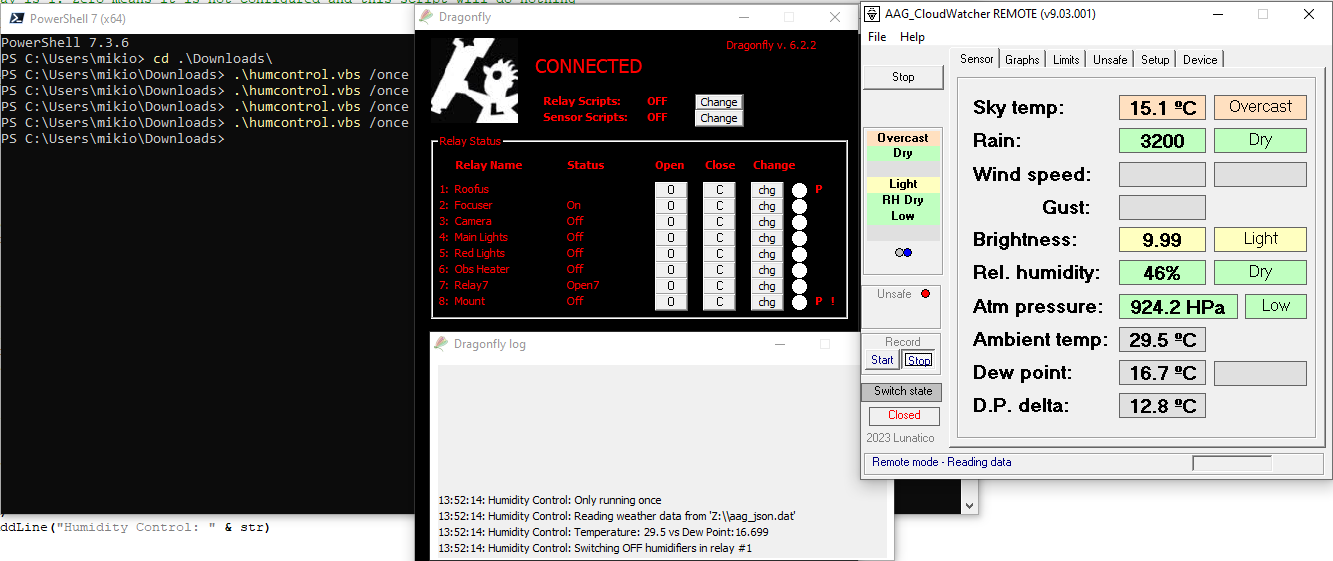
In the image below, we can see a manual execution of the script (from the Windows terminal). Dragonfly's log indicates the current temperature, the current dew point (both in Celsius) and, as a result, it will turn the humidifiers OFF.
Configure the script
Don't be afraid—you don't need programming skills to configure the script, you just need to be familiar with text editors (for example, Windows' Notepad, though a more development-oriented one, such as "Notepad++", is recommended).
The script requires a mandatory parameter: the relay number associated with your humidifier. When such a relay is open, the humidifier will not receive any power, and the other way around.
Two optional parameters control the temperature difference between ambient and dew point for the relay to be closed and open, respectively. They are optional because the script has a default value for them:
- If the difference between dew point and ambient temperature is less than the configured value (in degrees Celsius), the relay will be closed.
- If the difference between dew point and ambient temperature is bigger than the configured value (in degrees Celsius), the relay will be open.
To change these values, open the script you have downloaded with your favourite text editor and edit the first lines:
Option Explicit

' Relay controlling the humidifiers. It will be closed to enable humidifiers and
' opened to disable them
' First relay is 1. Zero means it is not configured and this script will do nothing
Dim humidifiersRelay
humidifiersRelay = 1

'
' Optional parameters (have a default value)
'
' If the difference between Dew Point and Ambient Temperature is less than this value
' the relay specified in "humidifiersRelay" will be closed
Dim humOnMargin
humOnMargin = 4

' If the difference between Dew Point and Ambient Temperature is bigger than this value
' the relay specified in "humidifiersRelay" will be open
Dim humOffMargin
humOffMargin = 6

' How often (seconds) weather data is retrieved. Once a minute should be good enough
Dim requestInterval
requestInterval = 60

' Maximum allowed difference between current date and weather data date
Dim maxSecondsGap
maxSecondsGap = 300

'
' DO NOT EDIT FROM THIS POINT UNLESS YOU KNOW WHAT YOU ARE DOING
'
For convenience, the mandatory parameter is humidifiersRelay, and the optional ones are humOnMargin, humOffMargin, requestInterval and maxSecondsGap.
Execute the script
Once you have edited and saved your changes, you can try out your script. You can either run it manually one time (for testing, like in the image above):
- Open a terminal window.
- Go to the directory where the script is located.
- Type
humcontrol.vbs /onceand press ENTER.
The result appears in Dragonfly's log window. Once you are comfortable with how the script behaves, you can execute it without the "/once" parameter. This way, the script will keep on checking whether to switch the humidifier OFF or ON.
You can also create a task in Windows Task Scheduler to execute the script when your user logs in.
Option 2: no Windows needed—enter the SOLO
We know Windows sometimes updates itself, restarts itself or just freezes. Or maybe you're just using Linux or Mac. Can you have this functionality right within the Dragonfly?
The Dragonfly only has inputs for relays and sensors—there is no serial port, and it doesn't understand the CloudWatcher's protocol. On the other hand, the CloudWatcher only offers a relay-compatible output dedicated to the safe/unsafe weather conditions. As said… this was not foreseen. Now we need a device that understands the CloudWatcher's protocol and exports weather data. And this is the SOLO's cue.
Weather data into the Dragonfly
The SOLO exports weather data files. Let's see how we can get them into the Dragonfly. The SOLO has a web interface with some handy URLs we can use for several purposes, including extracting weather data. Specifically, the following URL will return a JSON document with all current weather data from the SOLO: http://aagsolo/cgi-bin/cgiLastDataJSON.
From Dragonfly MK2 internal software version 2.5 or above and firmware 627 or above, the ability to query a URL is well supported.
Control the humidifier using Dragonfly's advanced macros
So far so good! We have the necessary devices and we have a way to retrieve weather data. If your Dragonfly is up to date (both internal software and firmware) you will already have the necessary material to control your humidifier from within the Dragonfly. All you will need to know is:
- The SOLO's IP address (to obtain weather data from).
- ON threshold: the difference between dew point and ambient temperature so that, if the difference is lower, the humidifier is switched ON. For example: "if the difference between ambient temperature and dew point is less than 4º, switch ON the humidifier".
- OFF threshold: the difference between dew point and ambient temperature so that, if the difference is higher, the humidifier is switched OFF. For example: "if the difference between ambient temperature and dew point is more than 6º, switch OFF the humidifier".
The way to execute actions from the Dragonfly is called "macros". You will already have noticed there is a whole section for macros in the Dragonfly Configurator application. Detailed information about advanced macros is available in the Dragonfly macros manual—now let's focus on the humidifier-specific stuff.
There are two ways to control your humidifier from the Dragonfly:
- Either you have the humidifier controlled by a relay, so that when open, the humidifier is OFF and when closed it will be powered up.
- Or you want a finer control, and want to execute a macro when the ON threshold is reached and another macro when the OFF threshold is reached.
Controlling the humidifier using a relay
This is the simplest approach. Simply connect the power of your humidifier to the output of one of the relays of the Dragonfly. When the relay is open, there will be no output current and the humidifier will be OFF. Otherwise (relay closed), there will be output current and the humidifier will be ON.
Let's assume the scenario is the following:
- Humidifier is connected to the output of relay #3
- ON threshold is 4º degrees
- OFF threshold is 6º degrees
- SOLO is at 192.168.1.132
The general syntax is:
s'humctlrelay <solo-ip> <on-threshold> <off-threshold> <relay-number>'
Then, write the following advanced macro—this is: s'humctlrelay 192.168.1.132 4 6 2'
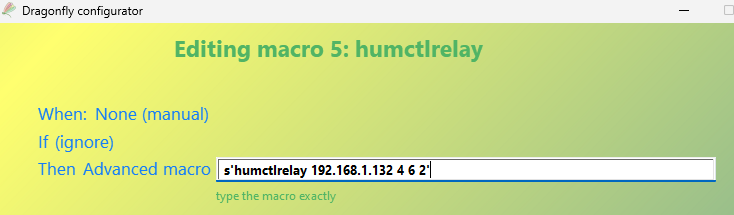
This means:
- Gather weather information from the SOLO at 192.168.1.132.
- If the difference between dew point and ambient temperature is less than 4º degrees, close relay #3. Important: in advanced macro syntax, relays are numbered from zero, so zero is relay #1, one is relay #2 and so on.
- If the difference between dew point and ambient temperature is higher than 6º degrees, open relay #3.
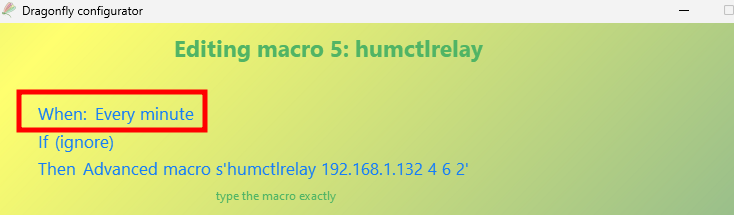
In the example above, we have defined the macro to be launched manually. You can change it to be run every minute, so the Dragonfly itself will check the thresholds every minute and you will be safe:
Controlling the humidifier using other macros
You may want to do more than one thing when the ON or OFF thresholds are reached. You may want to control more than one humidifier or do more complex things you cannot do with a simple relay. In such a case, you have the option to execute a macro when the ON threshold is reached and another when the OFF threshold is reached.
For this case, let's imagine this scenario:
- ON threshold is 4º degrees—if the difference is lower, we want macro #1 to be executed.
- OFF threshold is 6º degrees—if the difference is higher, we want macro #2 to be executed.
- SOLO is at 192.168.1.132
The general syntax is:
s'humctlmacro <solo-ip> <on-threshold> <on-macro> <off-threshold> <off-macro>'
Then, write the following advanced macro—this is: s'humctlmacro 192.168.1.132 4 0 6 1'
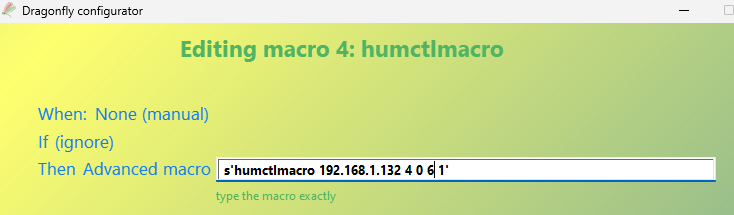
This means:
- Gather weather information from the SOLO at 192.168.1.132.
- If the difference between dew point and ambient temperature is less than 4º degrees, execute macro #1. Important: in advanced macro syntax, macros are numbered from zero, so zero is macro #1, one is macro #2 and so on.
- If the difference between dew point and ambient temperature is higher than 6º degrees, execute macro #2.
Again, the example above is configured to be run manually. You can change it to "every minute" or adjust it to your needs.