
Why unique names matter
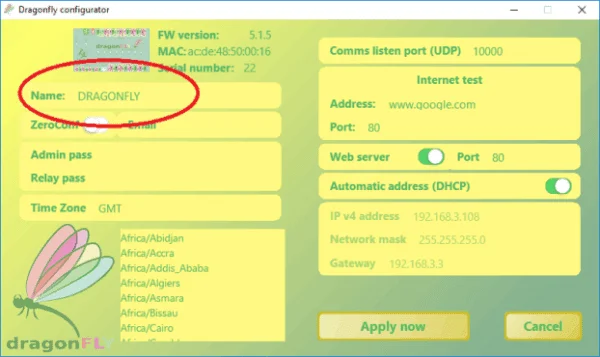
Having any number of DragonFlies in the same network is no problem, as long as each one has its own network name (the factory default is "Dragonfly").
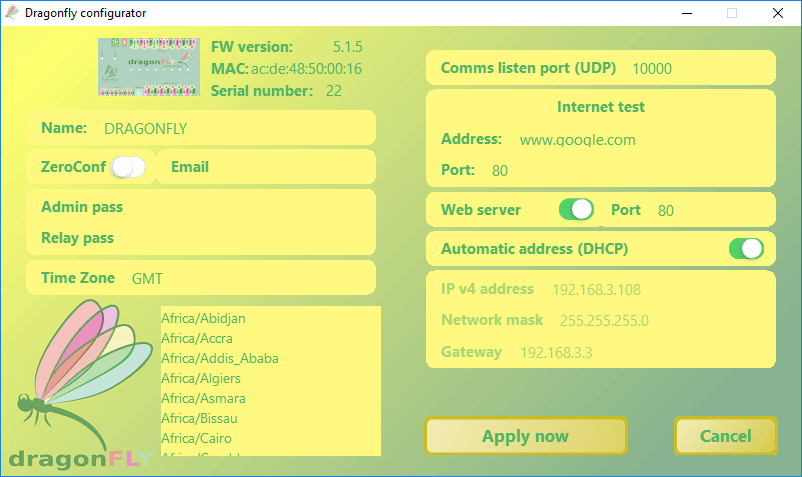
That is something you can set from the Dragonfly Configurator, in the general configuration.
Switching between units
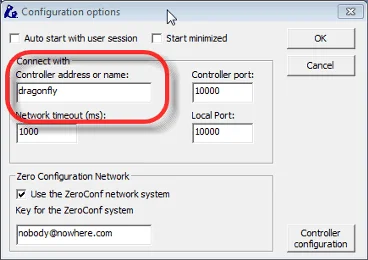
If you want to command more than one Dragonfly from the same PC just using the control panel window, that is fine: you can change the Connect with controller name back and forth and access any number of them.
Second Dragonfly—software and port
But if you use automation, ASCOM and / or scripting, then you need a special version of the software, so that the Windows automation objects have a different name. For a second Dragonfly, install this version:
- Run the Dragonfly2nd installer—it installs in a different folder. Do not use the primary installer for the second unit.
- "Connect to" will default to dragonfly2 for this second install.
- It uses internal port 10001 by default (the primary uses port 10000).
Note: If you have an IP camera or other device already using port 10000, see the troubleshooting article for how to change the primary application's listen port as well.
Scripting with two DragonFlies
Regarding scripts, there are some examples supplied. It is all the same, except that the automation object is Dragonfly2nd:
' Primary controller:
set dfly = CreateObject("Dragonfly.Help")

' Second controller:
set dfly = CreateObject("Dragonfly2nd.Help")
…and so on. Use the correct object to target the intended unit.
Current limitation of the secondary version
ASCOM dome
The secondary Dragonfly does not expose an ASCOM dome driver. Automation software that requires ASCOM dome control (e.g. CCDCommander) must use the primary unit for dome/roof control.
An alternative: the Multiple Dragonfly application
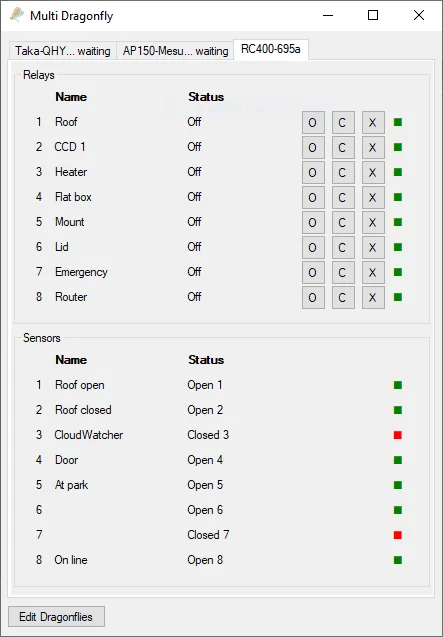
We're also developing a separate Multiple Dragonfly application—a convenient control panel for any number of DragonFlies. It's not yet fully finished, but it's available to try here, and we welcome you trying it out and contributing ideas or suggestions.
Features not yet supported:
Scripting
No support for scripts yet.
ASCOM
It's just the control panel—the driver will live in separate software.
Logging and validation
No logs, and no checks—invalid data can be entered without warning.
Zero-conf
The Zero Configuration Network is not yet supported.