
How it works
When you enter your email address in both the observatory-side Dragonfly software and the remote-side software, the system attempts to establish a connection through three stages in order:
- Direct connection—Dragonfly and the remote PC or smartphone attempt to connect directly over the local network or the internet. This is the fastest and most efficient path.
- External addresses—If a direct link is not immediately available, the software tries connecting through your router's external internet addresses.
- Lunatico relay—If both direct methods fail, it will set up a relay, so our server will be in the middle the whole time, sending messages back and forth (see the note below).
Note on relay connections: please note relayed communications are costly. They are not intended for extended periods, so expect them to be limited in time in the future.
Important: even with this system, it is strongly recommended to have a computer connected to the Dragonfly in the observatory during the imaging sessions. Any remote connection, even if easy to set up, is not by far as reliable as a local one.
Setting up the observatory side
- Download the firmware (4.x): Dragonfly.bin.
- Install it in your Dragonfly with the program—remember, just drag-and-drop it onto the Dragonfly drawing in the MainDragonfly program window.
- Install the Dragonfly software (Dragonfly5.0-Install.exe or later) on the observatory PC.
- Run Dragonfly Main and, once connected, go to Configuration → Controller configuration. You will see a new section—fill it in and click Apply.
Nothing else needs to be done at the observatory. Once applied, your Dragonfly will register itself in the system and will listen for remote connections.
Setting up the remote side
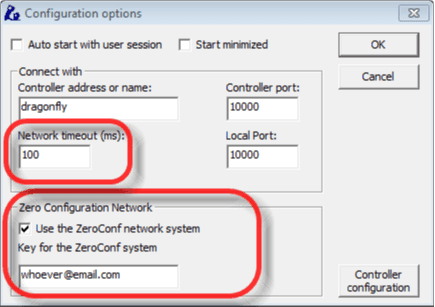
- Install the same Dragonfly software on the remote PC.
- Run Dragonfly Main and go to Configuration—just Configuration—and fill it in using the same email address. Make sure it is the same one.
- Set the network timeout depending on the quality of the internet connection at your observatory. We would try 1000 ms (so one second) to start with.
- Last, change the refresh period in the Dragonfly software (the control panel with all the relays and sensors) at home. The connection not being local, we suggest increasing the time to at least 500 ms.
When connecting using the system, it will look for a Dragonfly with the same key (your email) and the same name. Click OK, and it will start trying to connect using the different methods above.
You will then see a log window: if you see anything odd there, please capture the screen and send it to us. You can close the window once it has connected.
This feature is available for all Dragonfly customers—we'll add it to other products as soon as we can. The same Zero Configuration Network technology is also used by Solo CloudWatcher Android Widget users.
Firmware & software downloads · User manual · Video tutorials