
We can perform three different tasks, right now, with it:
- configure the internal static settings, such as system name, IP address, timezone, password, etc.;
- program the actions (macros) we want the Dragonfly to execute, and in what conditions;
- update the firmware.
Important to understand: this Configurator program changes what is stored inside the Dragonfly. It replaces the old "controller configuration" window in the normal Windows program.
We have gone to great lengths to make this program as easy to use as possible, especially the more complex macro definition. Any difficulties, please contact us.
Firmware update
Simply select "firmware update", and the software will guide you from there. It will connect to the internet, download the latest firmware, etc.
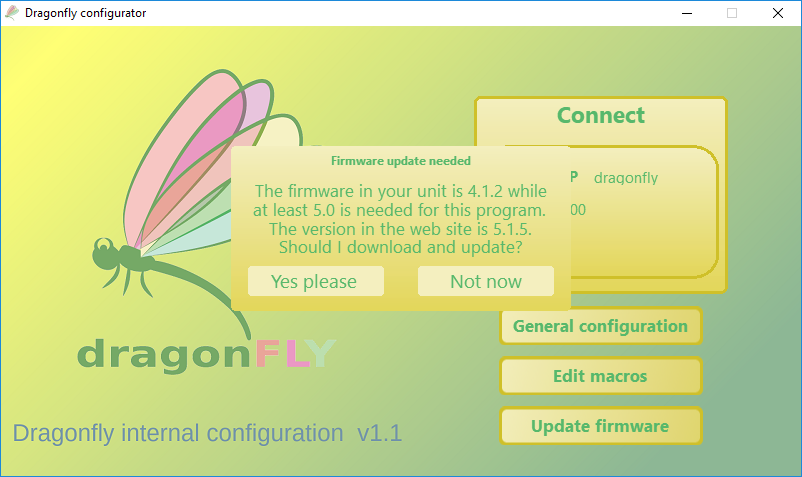
Be patient, it will take a few seconds for the controller to start receiving the new firmware.
Please note: Dragonfly 2 systems are updated using its internal web instead.
General configuration
Most things are self-explanatory, so just a few notes:
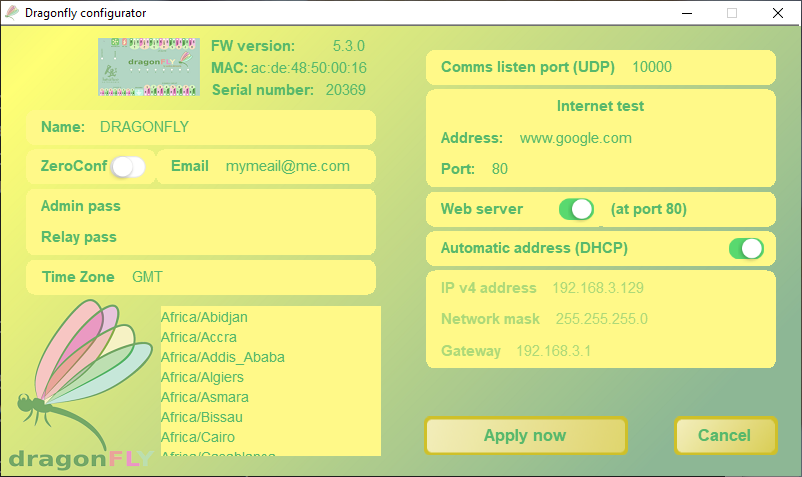
- To enter text, click in the desired field, type, then press enter.
- To set the time zone: click in the field (where GMT is displayed in the image), and type a few letters of your timezone. The list below will become a filtered list, displaying the matching results. Once you see your timezone, double click on it, and it will appear in the field. Do not change that.
- To set an administrator password, an email must be provided, even if you don't use the ZeroConf system. It is the only way to recover the password in case you forget it.
- Once you click "Apply now", everything will be saved inside the controller, permanently (until further change).
Please use a real, valid email. It not only may help in case you lose the password, but also ensures accessing your Dragonfly if you use the ZeroConf system.
Macro editing
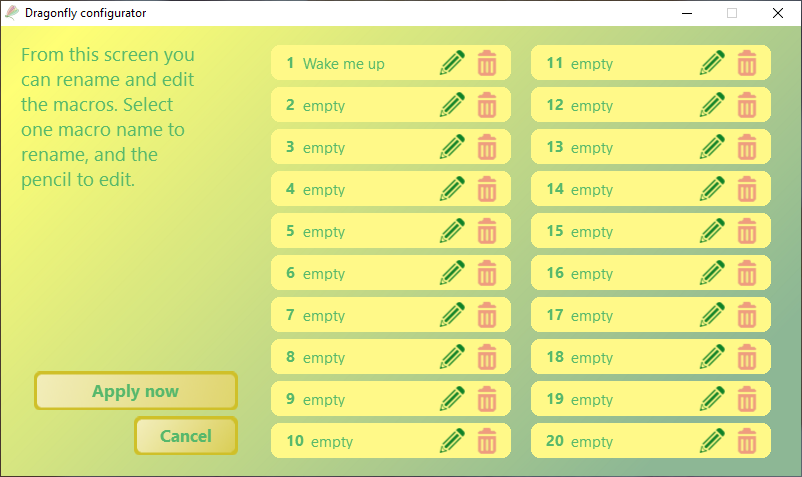
We call macros, to make a clear distinction with respect to scripts, to the intelligent, autonomous actions the Dragonfly can execute. You can define up to 20 macros. It is extremely easy to edit them, so just a quick example.
Before defining macros, it is very convenient to give each sensor and relay a name. This is done from your "panel" control software. If you are migrating from older versions of the software, in Windows, there is a button to send the configuration to the Dragonfly.
Let's define macro 1: click over "empty" to give it a name, let's say "Wake me up", press enter, and then click the pencil icon:
You'll be presented with a series of options, allowing the definition of quite complex and useful actions. For every macro, you can (have to) define a firing condition (many options), optionally another condition (sensor / relay status based), the first action to be performed, and optionally a second action.
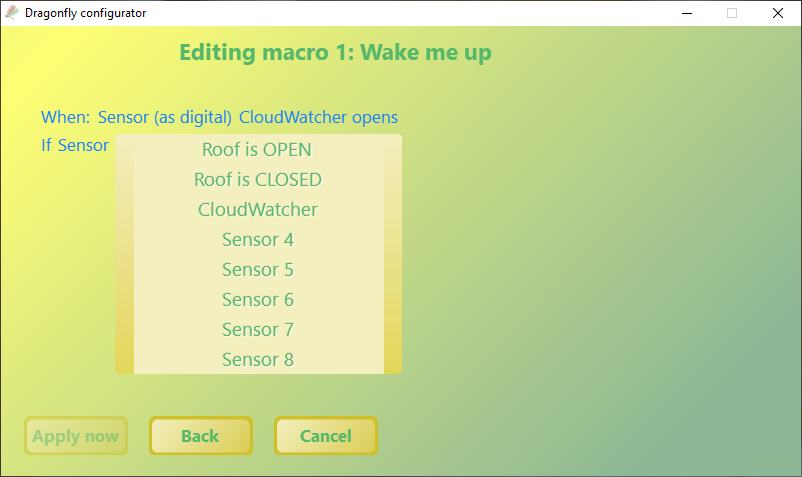
We've worked hard on making the system easy to understand, so we hope this does not need further explanation. You can go back at any moment by clicking "back". Here is the finished macro, with both a Wake On Lan action and a PushBullet message:
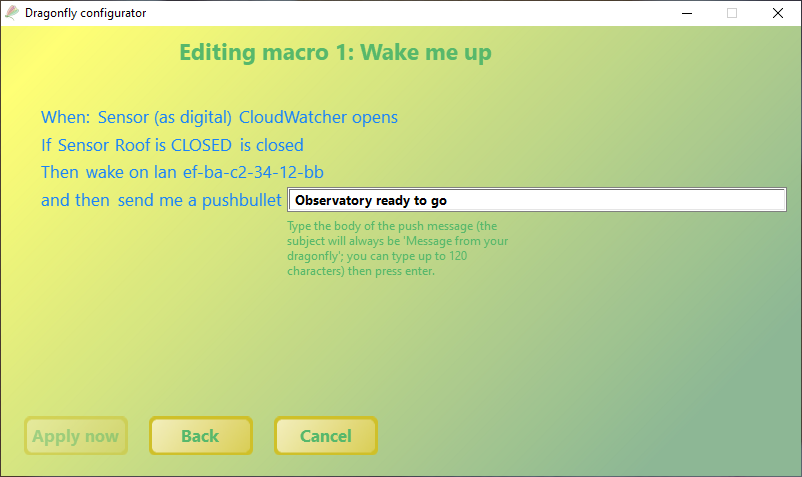
Press enter after typing any text, and don't forget to "apply now". You also have to click "apply" in the window with the list of macros to have them saved to the Dragonfly.
We are releasing some very short video tutorials with ideas on macros and other related Dragonfly tasks—please check our YouTube channel. For the full syntax of more advanced macros, see the Dragonfly macros manual.
A few (very few) limitations
The ZeroConf system is composed of several cloud services provided for free by Lunático to enhance the usefulness of our devices.
Every feature of the ZeroConf system has a small cost, but some of them, if used excessively (as for now, specifically, the relayed sessions, and the email capabilities) may end up adding to a very high expense.
For these features, and any similar future ones to be maintained for free as they are today, responsible usage is requested:
- Use the email system sparsely. It is ok to send an email as a warning of every unexpected condition; it is not ok to send many emails per session, every session.
- Relayed sessions (those in which the communication cannot be directly established between your computer / phone / tablet and the Dragonfly, and our server "sits in the middle" sending messages back and forth) are not appropriate for full-session, hours-long, monitoring. They are ok for checking the status, operating the roof, starting or closing the session… short sessions, amounting to a few minutes in total. If you need to keep full-session monitoring and are unable to set up a direct connection, check our website or just write for help. Opening a port in your router is all that's required for the sessions to be practically free of cost (as opposed to quite expensive).
With just a bit of effort the system will remain free of charge, forever. Thanks.
Other notes and quirks
- If you cannot access your Dragonfly from the Configurator (but you can with other software), please check that the firewall is not blocking it.
- The internal clock is synchronized with our servers every 3 hours, provided internet connection is available. If it is not, the accuracy of the clock will degrade. Do not use the clock feature if your Dragonfly is not usually connected to the internet.
- The internet tests are performed every 5 minutes; if a macro is launched because of this (internet failure), it will relaunch itself if the internet does not come back (same periodicity as the first launch).
- The power LED will become orange / red if the power supply voltage drops below a safe value (of approx. 11.3V). Expect the relays to all become temporarily open, and unable to change, until voltage returns to normal. The Dragonfly is the key to powering your equipment—use a good, dedicated power supply for it.
- The activity LED will become orange / red if the system detects a faulty condition. You can check the condition from the internal web (
http://dragonfly)—please notify us. - The actions and triggers in
onconnect.iniandondisconn.ini, existing in older Windows software versions, should not be needed now. If you used this capability, we suggest replacing it with macros. These files will be ignored in future releases. - Password protection will not work for web sessions. You may disable the web server from the Configurator if you need that level of security. Also, a password change will not affect current sessions.