
(contents revised Feb 2015)
PinByPin was created to help a Canadian customer who wanted, in addition to controlling his focuser, to switch relays for dew heaters on and off depending on temperature changes detected by the Armadillo's built-in and optional external temperature sensors. It can also be used to drive cooling fans, one per output pin, in a similar way.
Main control window
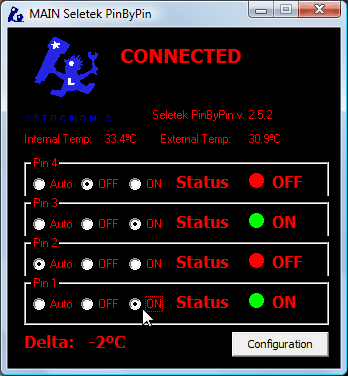
You can change the setting of any pin at any time to switch it remotely with ease, or automate device control in response to the temperature sensors by configuring the "Auto" setting for that pin.
Worked example: fans and dew heaters together
Pins 4 and 3 drive the primary mirror cooling fans, becoming active if the external temperature reads higher than the internal one, while pins 2 and 1 each drive a separate relay operating a separate dew heater. The "Internal sensor offset" lets you fine-tune the internal sensor's bias, caused by its location inside the Armadillo enclosure.
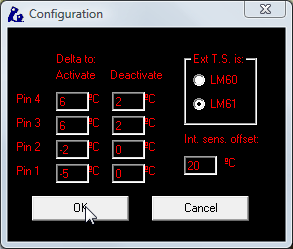
See wiring your fans or relays to your controller for the simple wiring instructions, and the later PinByPin improvements added since this article was written.
PinByPin is just the latest in a growing suite of observatory and telescope automation hardware and software capabilities for the Seletek controller family.