
Connect your computer to the board with a USB cable, and turn the Caterpillar on. Windows will detect a new device and may install the drivers automatically. If it does not, install the CP210x driver manually: CP210x_Universal_Windows_Driver.zip .
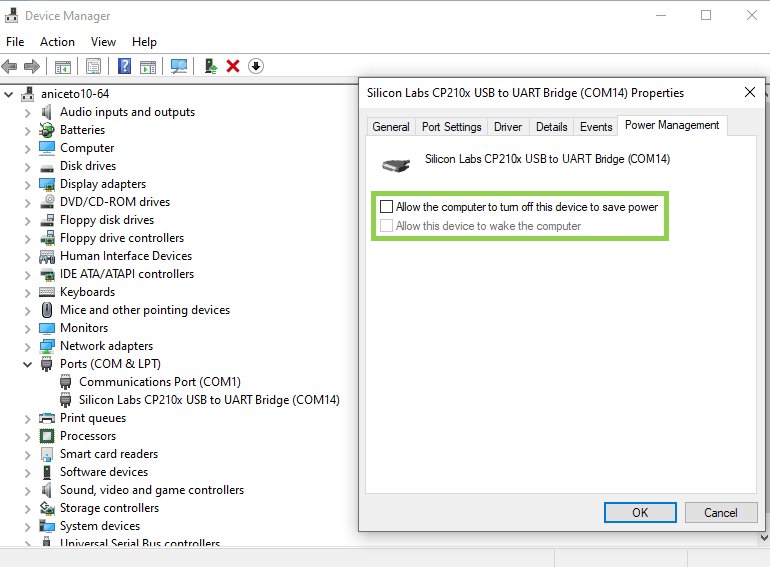
In order to find out which COM port has been assigned to your Caterpillar, use the Windows Device Manager. This number will always be the same for your device, and will be required to configure the connection.
You should also disable the power saving feature of the USB port: in Device Manager, find the CP210x device under Ports (COM & LPT), open its Properties → Power Management, and uncheck "Allow the computer to turn off this device to save power".
Open Initial motor configuration and settings. The Port dropdown will list all available serial ports. If the board does not appear, click Reload Ports. Select the correct port and click Connect.
The status bar will show the board's firmware version string once connected (e.g.
Caterpillar3mp LOCo3mp 1.2.0 None Mode=Rot|Shut).
If you have a separate shutter board, Initial motor configuration and settings will connect to the rotator board first, then wait up to 30 seconds for the shutter board to respond. A "Waiting for shutter…" message will appear in the meantime—make sure both boards are powered on.