
You'll get a warning, or maybe several, about the site not being secure. You are in your local network, so trust that you're accessing your own SOLO. You'll be asked for a user and password—in this case the user is "solo", the password the same as before, "cloudwatcher".
The reason for the warning is that a custom certificate is used, which allows all information to be encrypted for safety, but the certificate itself is not registered with a certification authority—a more complex and expensive step that isn't needed here.
Once you've agreed to proceed to the site, you can access three pages:
- Configuration, where you set up your SOLO in a very similar way to the CloudWatcher Windows software.
- System details, where you can adjust the time/date, network configuration, change the default password (see note below), reboot the system, or shut it down—for the shutdown process, since it will take a trip to the observatory to start it again, you'll be asked to confirm.
- USB status, which shows mounted or unmounted. Clicking the button checks the USB status again (if unmounted) or unmounts it prior to a safe removal (if mounted).
There is also an option to update the system: from there you can check if there's a new version and, optionally, update to it.
Note: the password you can change here is the one used to access this configuration section of the web. It does not affect the password used to access the files over the Windows network.
A few notes about the configuration follow—please consult the online documentation for the Windows program for more specific data.
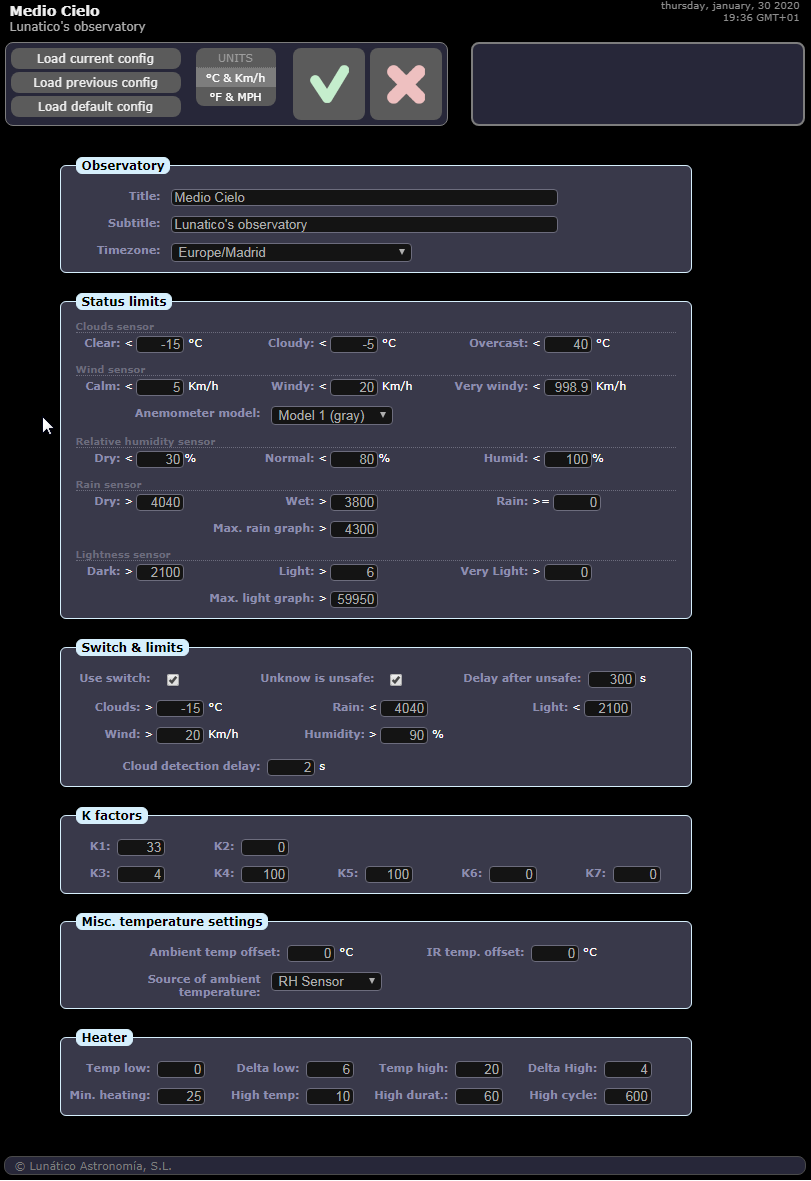
- Units (ºC Km/h, or ºF MPH): choose your favourite units.
- Timezone: select your time zone so readings are accurate and match your local time for automation programs. The web pages themselves will match the local time of the place you're connecting from.
- Load previous / default configuration: options to recover from errors or tests.
- Max rain graph / max light graph: defines the upper limit of those graphs so they look right. The other graphs (cloud, temperature, wind speed) adjust themselves to the current data range.
- Ambient and IR temperature offsets, used to compensate for electronics heating and other factors; the offsets are subtracted from the raw sensor readings.
- Source of ambient temperature: as a rule of thumb, if you have the external RH sensor installed, select it as the source of ambient temperature.
- Unsafe limits: specify the limit beyond which a reading is considered unsafe. This differs from the Windows software, where you only had 3 options (matching the 3 ranges) for setting unsafe. For instance, you can define wind speeds 0–5 Km/h as calm, 6–25 as windy, and above that as very windy, but set the unsafe wind limit to, say, 20 Km/h.
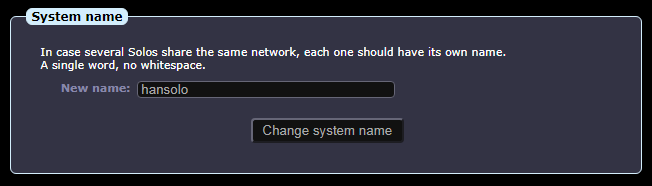
The System page holds settings of a more computer-related nature: network, date and time, etc. If several SOLOs share the same network (as happens in observatory hosting places), it is generally advised to change the name so each one is unique on the network.
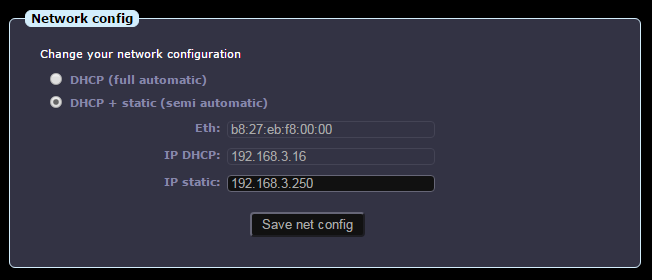
In the network config, you can specify whether you want the SOLO's address to be obtained automatically from your router (full automatic)—avoiding any problem—or whether you prefer to also specify a static (fixed) address, useful to make the SOLO accessible from the internet.
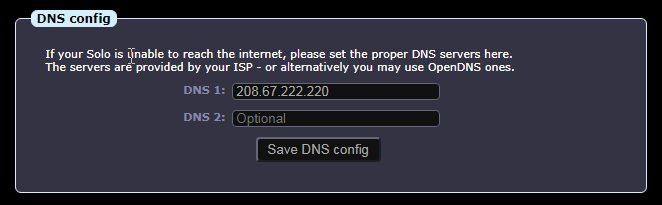
If your SOLO fails to access the internet (most noticeable if software updates fail to work), you may need to adjust the DNS (name server). The suggested one (208.67.222.220) is a good, free option from OpenDNS. Another popular server, easier to remember, is Google's 8.8.8.8.
Filling in the ZeroConf data makes the SOLO publish summary data to Lunatico's cloud server every few minutes. At the time of writing this is useful for users of the Android widget.
If you want the SOLO to send push messages to your smartphone, PC, or elsewhere, there is support for this using PushBullet—a great, free system, but not available for iOS—and also Pushover, almost free (a very low, one-time payment) and available on every platform.
You'll need a PushBullet or Pushover account; you can then install a client, or check notifications on the website. With your account you'll be able to generate a token (or key), a long string of characters that identifies your account. To activate sending messages when the weather changes from UNSAFE to SAFE (and vice versa), copy your token here, adding "pb-" if it is a PushBullet token, or "po-" if it is a Pushover one. So if your key is "asdf123ljasd89j123j12" and it is from PushBullet, you'd type "pb-asdf123ljasd89j123j12"; if from Pushover, "po-asdf123ljasd89j123j12". No quotes!
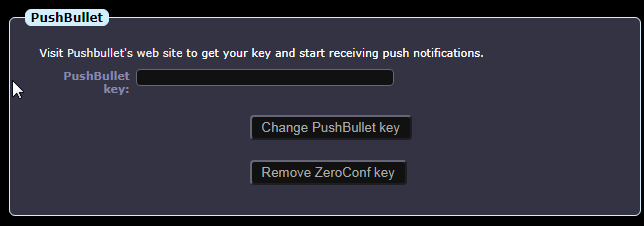
Suggestion: activate push notifications only on imaging nights.
The rest of the page is self-explanatory (date and time, reboot, shutdown).