
Additionally, more scripts can be programmed for the Dragonfly to launch, adding versatility. As you may have noticed in the control panel:
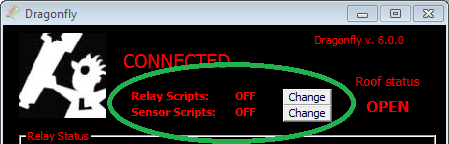
…you can enable / disable relay and sensor scripts. When enabled, and a change in the state of a relay or sensor is detected, the corresponding script will be launched.
These scripts complement the internal "macros" you can define using the Dragonfly Configurator. The main differences are:
- these scripts need this software (we're discussing here) running;
- scripts can access other software on the computer—they can, for example, command the mount to park, launch programs, etc.;
- macros, however, will be active as long as the Dragonfly is powered, and can be triggered by a variety of conditions;
- macro actions are limited to changes in relays and a few network operations: sending emails and PushBullets, waking a computer via WOL, …
Check the exhaustive Dragonfly macros manual or our short tutorial videos for more information on the macro (and/or script) capabilities.
Naming convention
Back to the scripts, the naming convention is as follows:
RelayClose1.vbs…RelayClose8.vbs: scripts to be executed when the given relay changes to closed.RelayOpen1.vbs…RelayOpen8.vbs: same, when it changes to open.SensorOn1.vbs…SensorOn8.vbs: when the sensor changes to ON.SensorOff1.vbs…SensorOff8.vbs: … and to OFF.
Only existing scripts will be taken into consideration; missing ones will not result in any kind of error—meaning if you want a script to run when sensor 4 becomes ON, you just have to write that one (SensorOn4.vbs) and enable sensor scripts. No problem at all with the missing scripts for other sensors.
A simple but powerful application is to have a physical button terminate the session—park the scope, close the roof, switch off the computer. Another possibility is to use one sensor input to detect power failures; there's an article explaining this on our website.
Important considerations
- The scripts will be executed when (or if) a change is detected. Very fast or spurious changes may not be detected at all (this will depend on the refresh period configured).
- They will be executed just once for each change.
- Beware of script–script, and script–program interaction, for example:
- If your automation program is in charge of monitoring the weather, do not just close the roof if a sensor detects unsafe weather—instead, you can set it up so it closes if, after a safeguard period, it's still open.
- If you want to switch off the lights (or the dehumidifier) when the roof starts to open, do it in a single place: either at the ASCOM OpenShutter script (it will work only when opening via ASCOM) or with a sensor script when the sensor indicating "roof closed" changes to open (it will work as long as the Dragonfly software is running).
Don't forget that your scripts can do many more things than just handling the Dragonfly's inputs and outputs—they can launch external programs, access any ASCOM objects (such as the mount), command Windows to switch off…
Addenda 1: analog sensors
Even if you have properly configured the analog sensor settings as explained in Section 5-c, that configuration will only affect the remote control panel (main window) of the Dragonfly.
For the sensors to behave as analog in the scripts, the method SensorAnRead must be called, and the result (which will be between 0 and 1024) matched against the desired values.